START HEREFour steps to a brighter site
You can see what Lucia does for your site in about two minutes, without an account. When you are happy with the result, sign in and put it live.
-
Scan your site
Enter your address on getlucia.ai and select Light it up.
-
Read your score
See your Beacon Score before Lucia and with Lucia's fixes applied.
-
Preview the fixes
Open the patched page and try it as your visitors will.
-
Go live
Sign in, add your site, verify your domain and point it at Lucia.
01Lucia in a minute
Lucia makes websites work for people who use a screen reader, a keyboard, screen magnification or other assistive technology. It finds accessibility problems on each page and fixes them as the page is delivered, so your code, content and hosting stay exactly as they are.
Words you'll see
- Beacon Score
- A score from 0 to 100 for how accessible a page is, based on the checks that can run automatically.
- Fix
- One change Lucia makes to a page, such as adding a label to a link. The dashboard also calls these stitches or patches.
- Lucia badge
- The Lit by Lucia button on your site. It opens a panel with your score and the fixes applied.
- Preview
- Your site with Lucia's fixes applied, at a Lucia address. Use it before you change any DNS.
- Evidence pack
- A downloadable record of what Lucia found, what it fixed and what still needs a person.
- WCAG
- The Web Content Accessibility Guidelines, the international standard. Lucia tests against version 2.1, level AA.
02Run a free scan
Anyone can scan a public website from the getlucia.ai home page. You don't need an account.
- Open getlucia.aiGo to getlucia.ai.
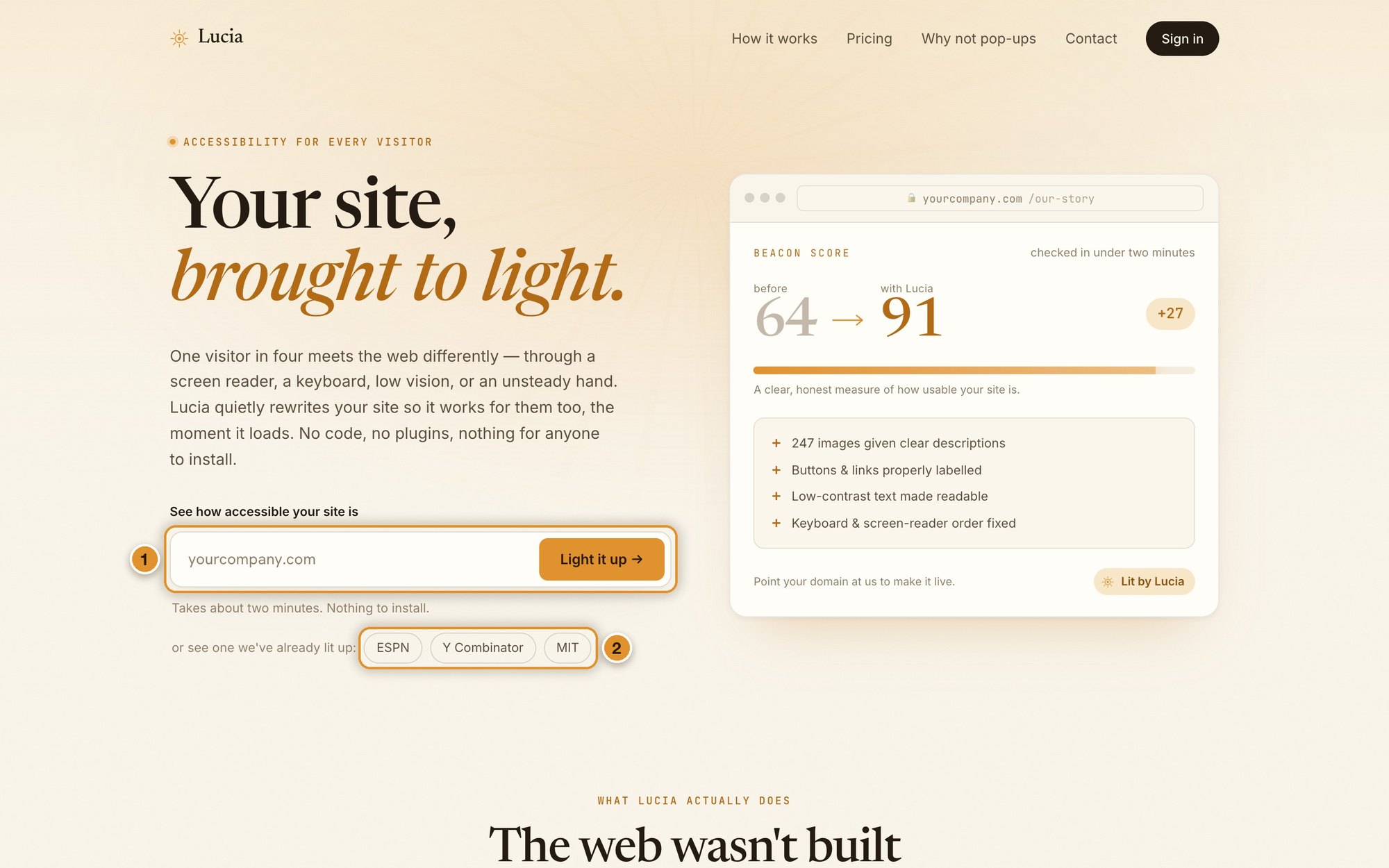
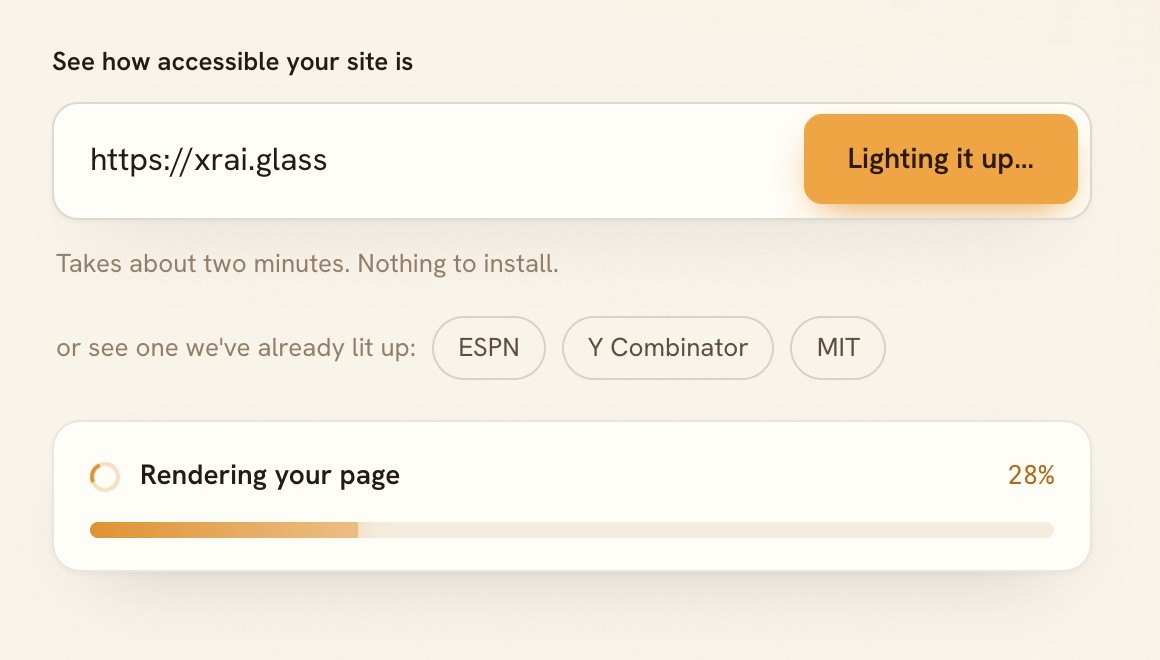
- Enter your addressUnder See how accessible your site is, type your own website's address, such as
yourcompany.com1. - Select Light it upThe scan starts straight away.
- 1Address and Light it up
- 2Example sites
While the scan runs
A progress bar shows each stage — rendering your page, checking every element, writing the fixes, building the patch and confirming the lift — with the percentage complete. Keep the page open. Most scans take about two minutes; very large pages, and sites that limit automated visitors, take longer.
Read your result
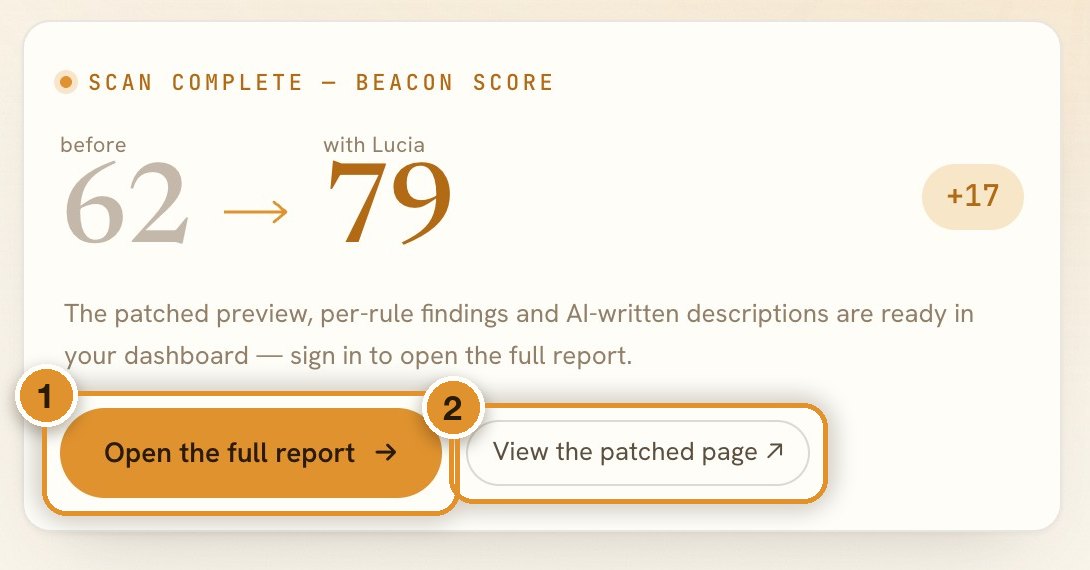
The result shows your Beacon Score before Lucia, the score with Lucia, and the change in points.
- Open the full report 1 takes you to every issue and fix in your dashboard. You'll be asked to sign in, and the site you scanned is added to your account.
- View the patched page 2 opens a live preview of your page with the fixes applied.
- 1Open the full report
- 2View the patched page
03Explore the examples
The home page includes three real sites with Lucia applied — ESPN, Y Combinator and MIT. Select one to open it under the scan field.
- Before and With Lucia 1 switch the live preview between the original and the fixed page.
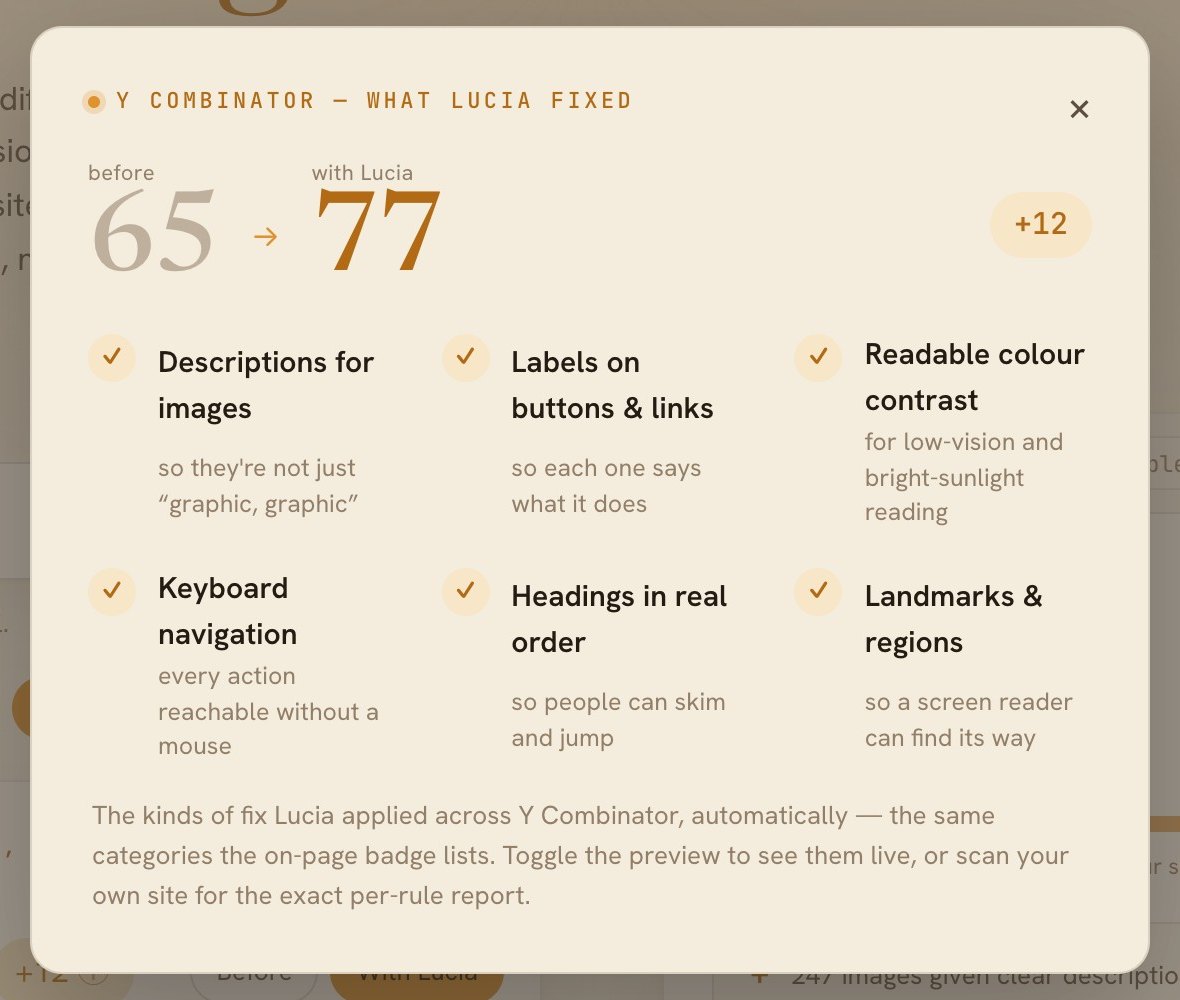
- The points change 2 opens a summary of what Lucia fixed.
- Open in new tab 3 opens the preview in a full browser tab.
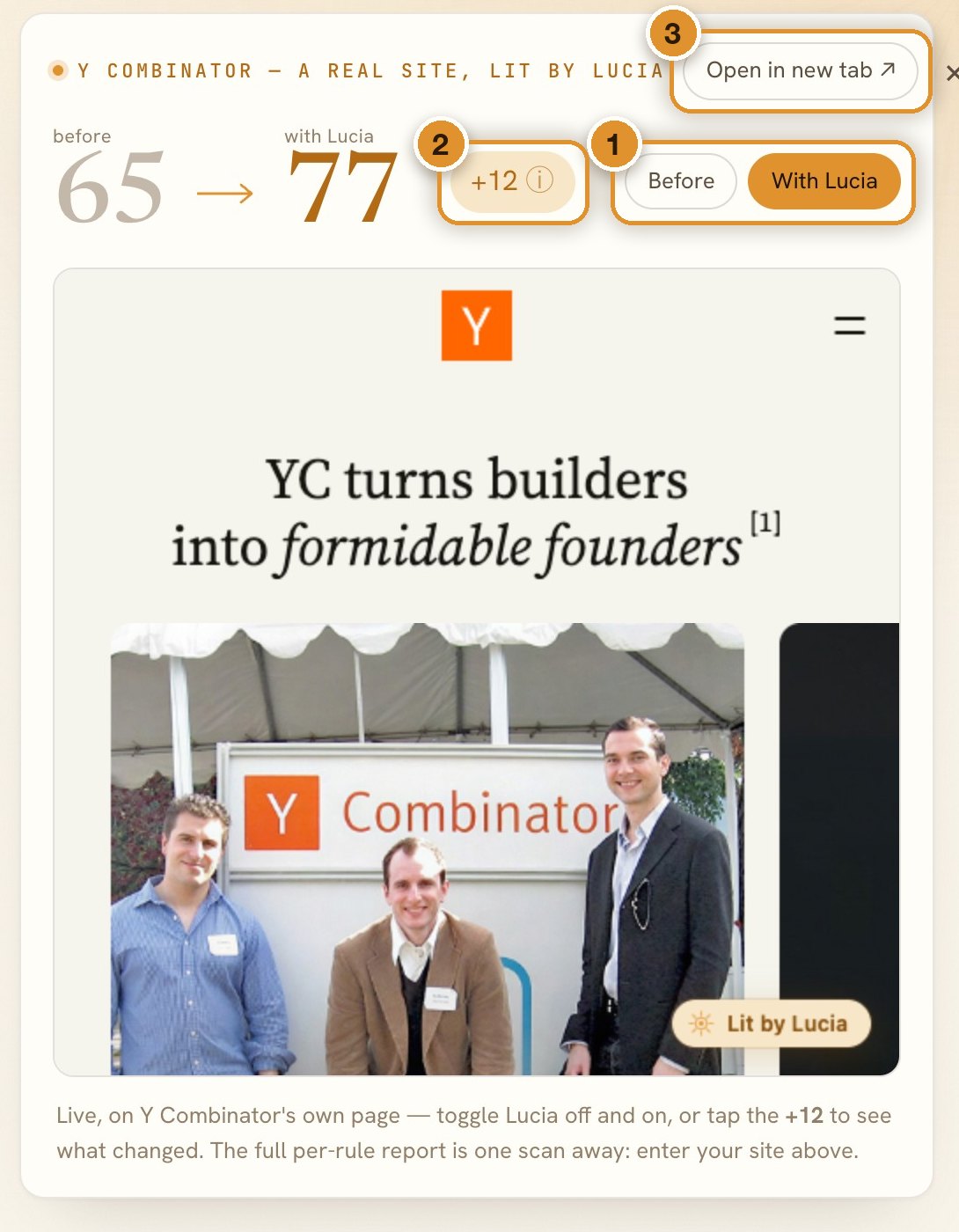
- 1Before / With Lucia
- 2Points change
- 3Open in new tab
The summary groups the fixes into six kinds: descriptions for images, labels on buttons and links, readable colour contrast, keyboard navigation, headings in the right order, and landmarks and regions.
04What your visitors see
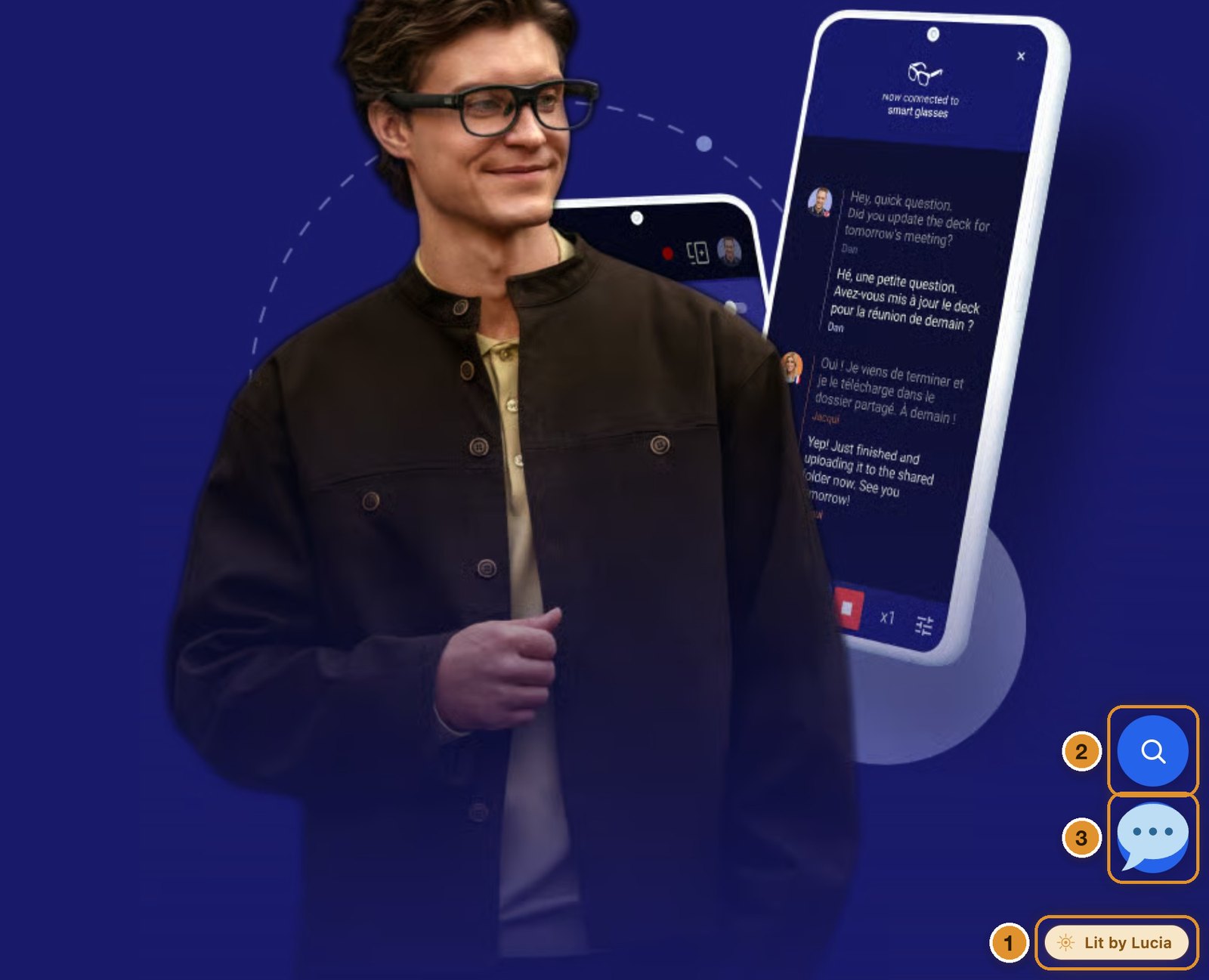
Most of Lucia's work is invisible: the page simply works better. Visitors also see up to three small buttons in the bottom-right corner.
- 1Lit by Lucia
- 2Site search
- 3AI assistant
The Lucia panel
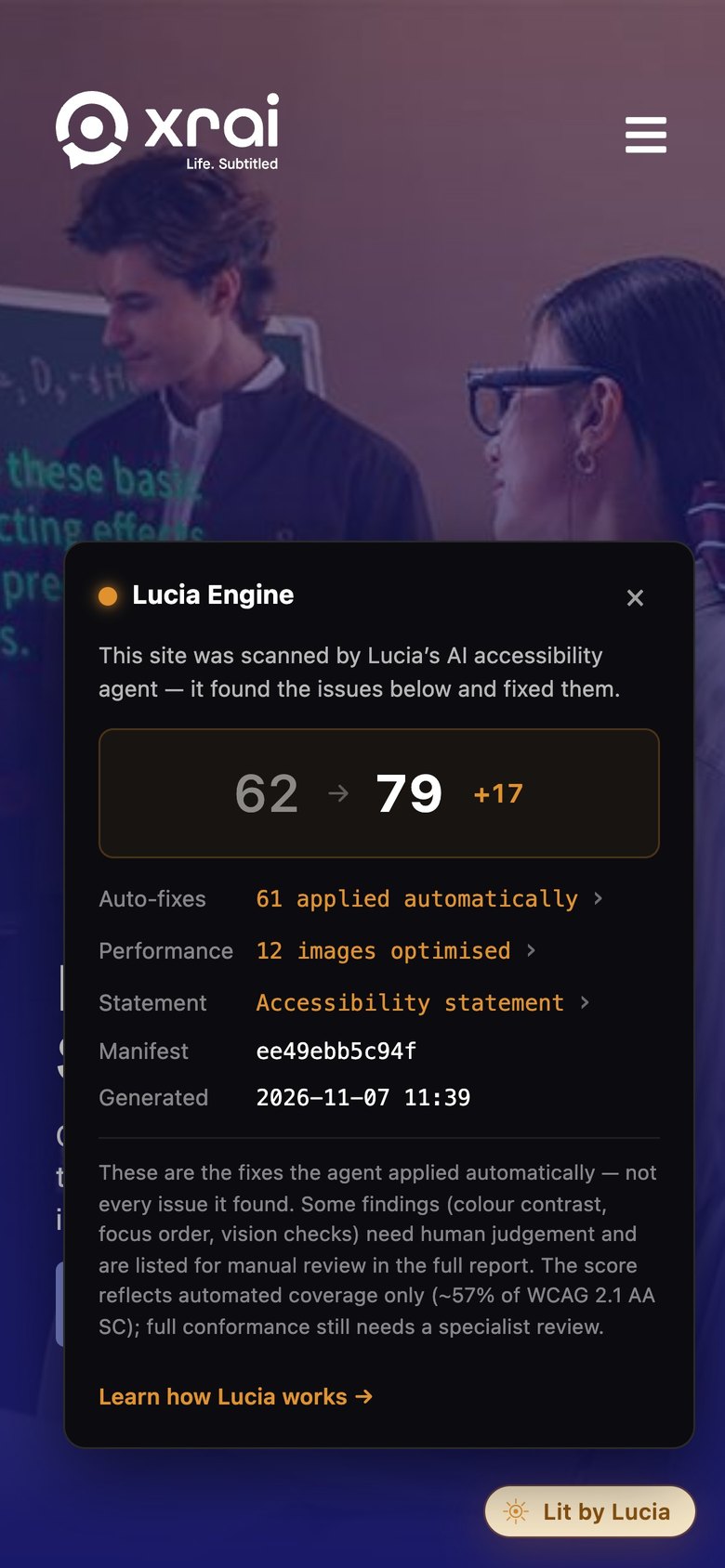
Selecting Lit by Lucia opens the panel. It shows:
| Row | What it shows |
|---|---|
| Score | The Beacon Score before Lucia and with Lucia, and the change. |
| Auto-fixes | How many fixes were applied to this page. Select it to see each one. |
| Performance | How many images were optimised. Select it to see each image. |
| Statement | Your site's accessibility statement. |
| Manifest | An identifier for the current set of fixes. Quote it if you contact us about a page. |
| Generated | When the current fixes were created. |
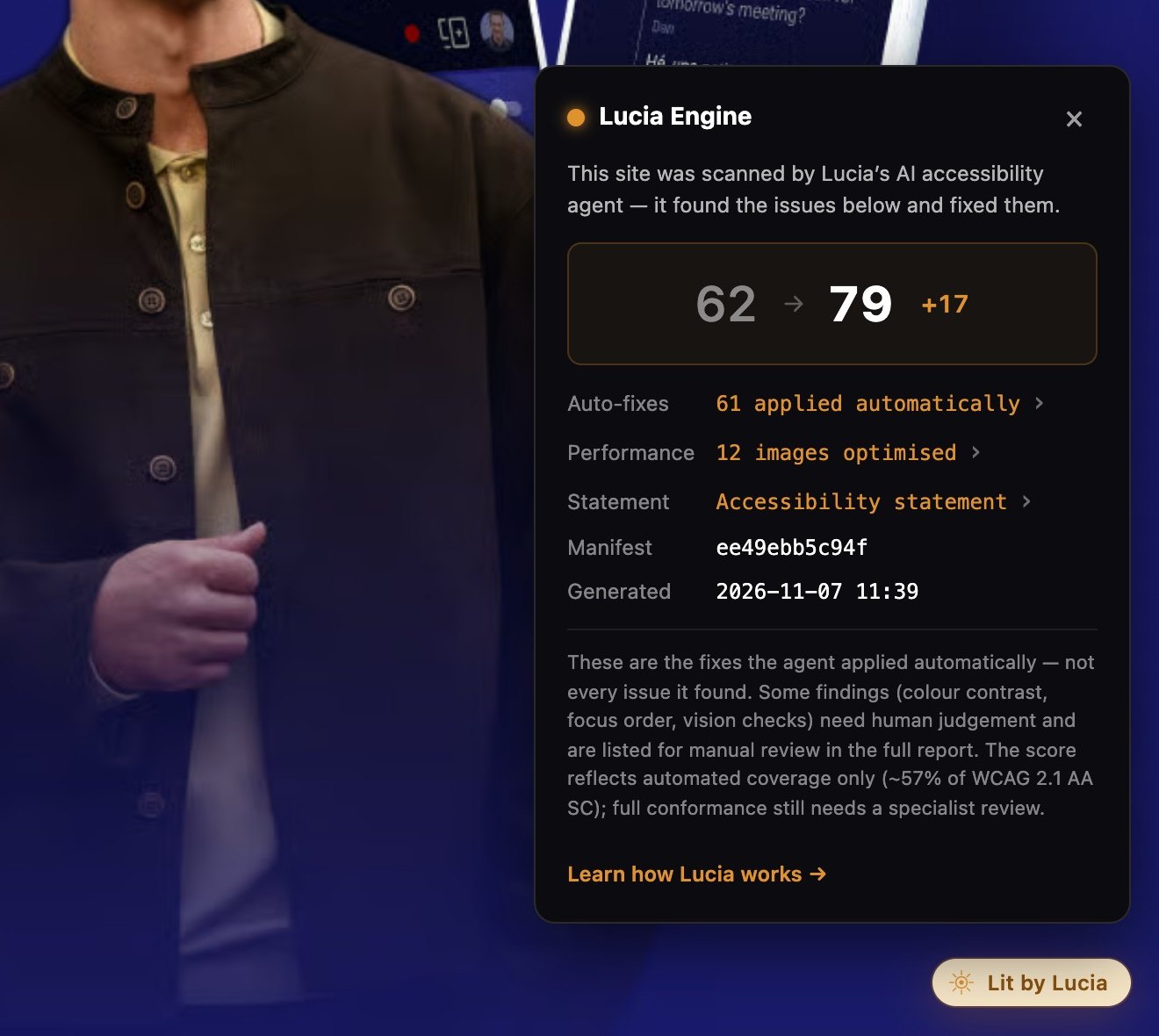
The score covers the checks that can run automatically — about 57% of the WCAG 2.1 AA success criteria. Judgement calls such as colour choices, focus order and visual checks need a person; they are listed for manual review in your full report.
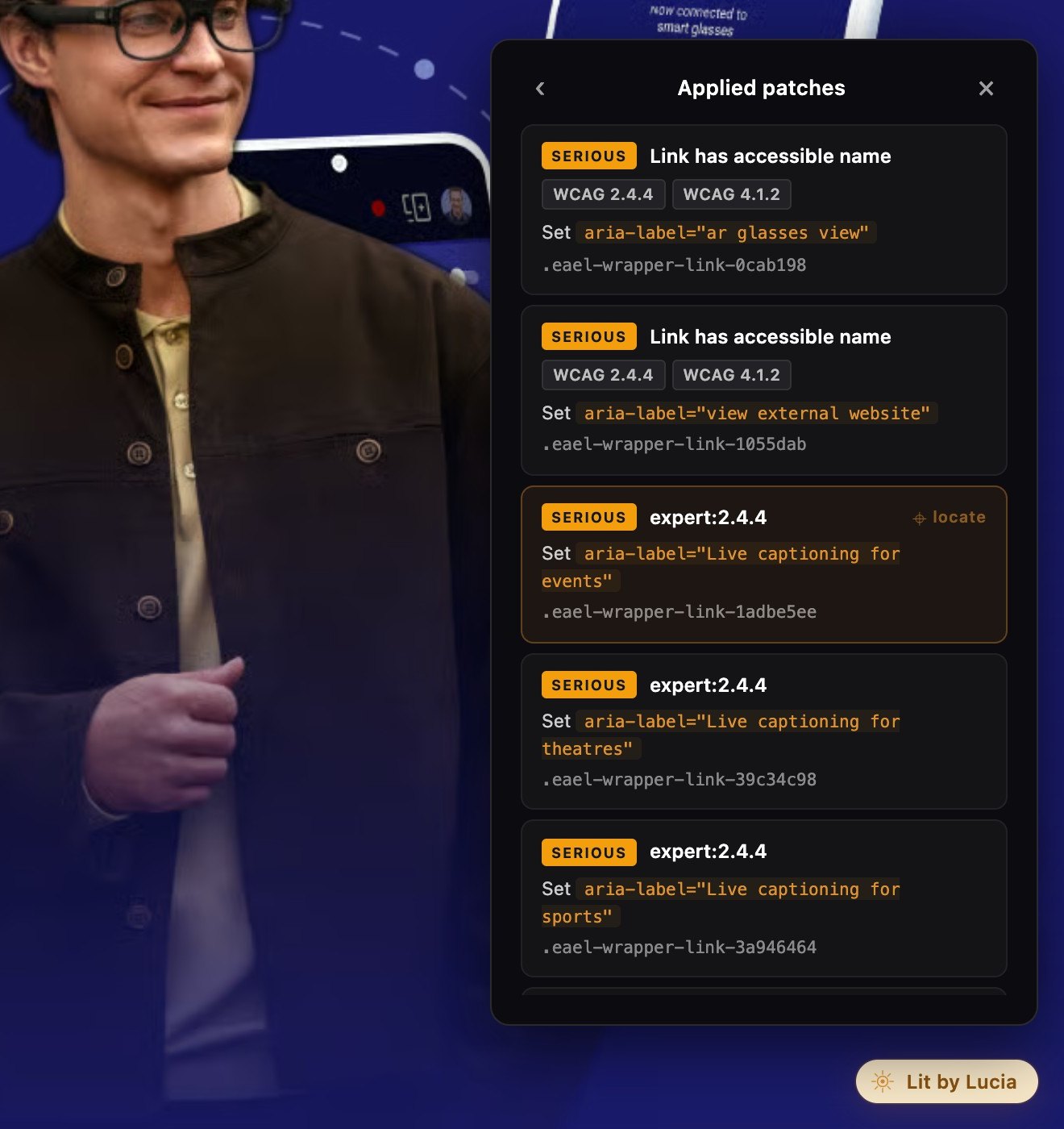
Fixes applied
Select Auto-fixes to open Applied patches. Each fix shows how serious the problem was (Critical, Serious, Moderate or Minor), the WCAG success criteria it relates to, the change Lucia made and the element it changed. Point to a fix, or move to it with the keyboard, to highlight the element; select it to scroll to it.
Optimised images
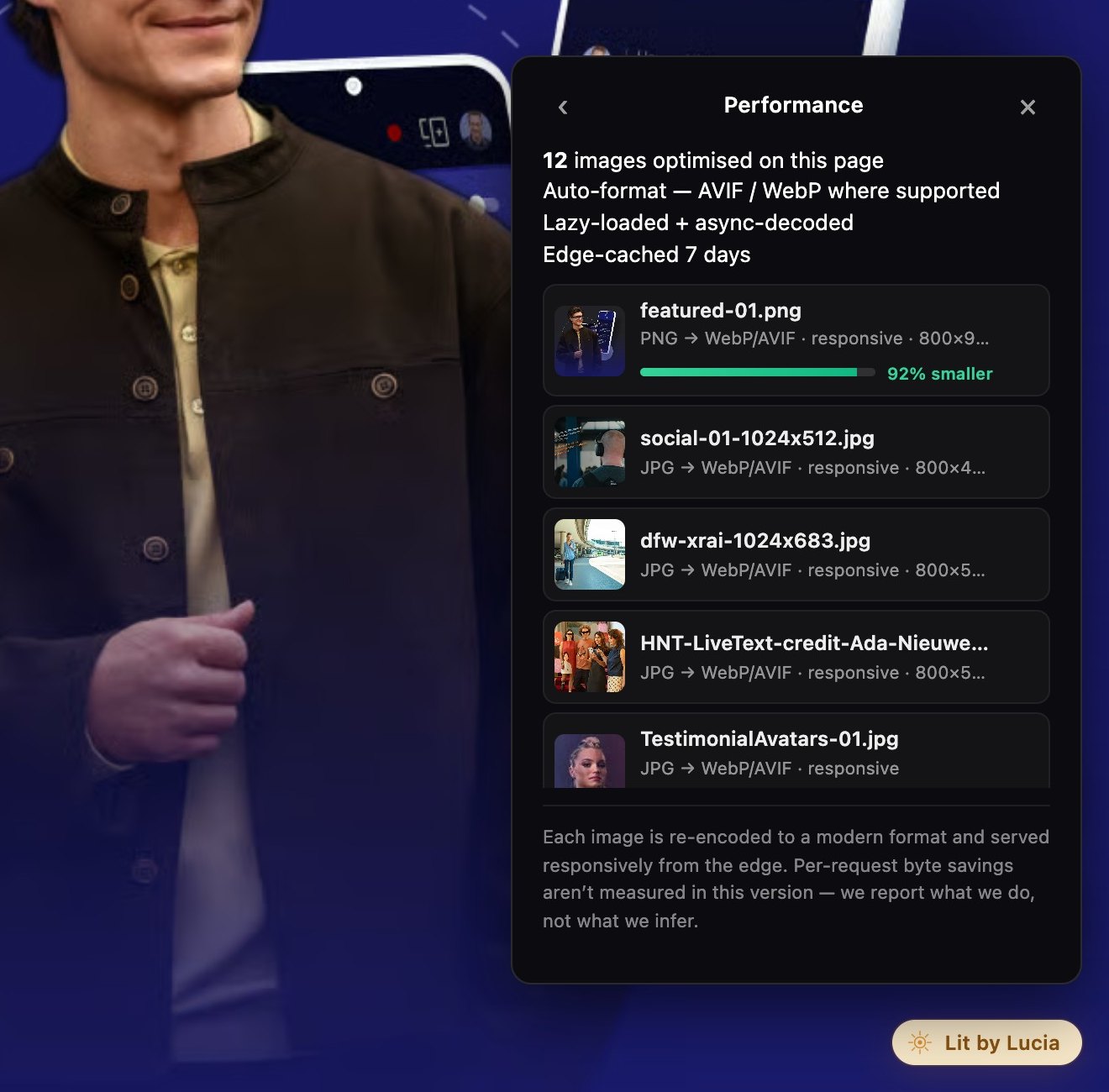
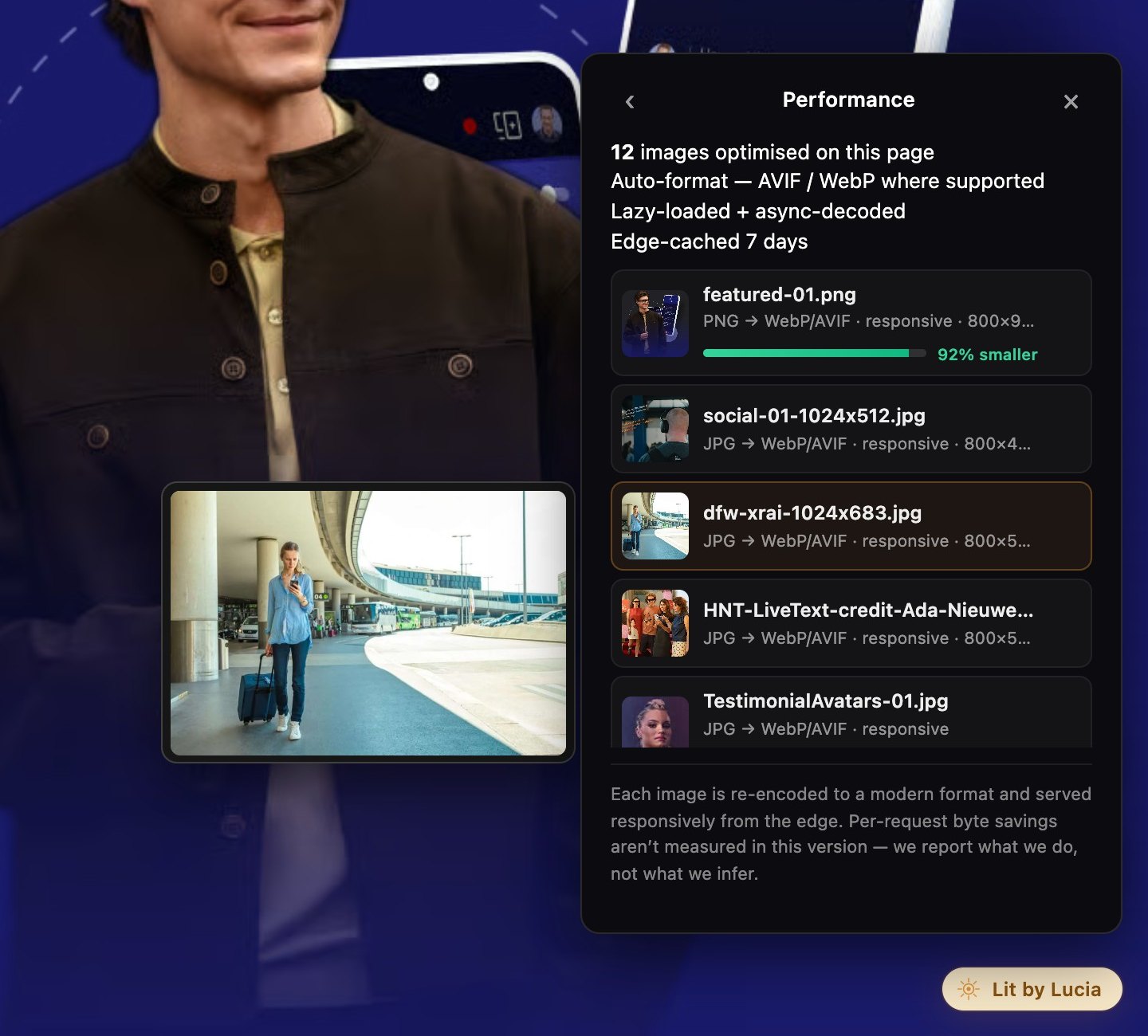
Select Performance to see the images Lucia optimised. Each one is converted to a modern format (AVIF or WebP, depending on the browser), served at a size that suits the screen, and loaded only when it's needed. Where a bar appears, it shows the saving measured in that browser. Point to an image for a larger preview.
Accessibility statement
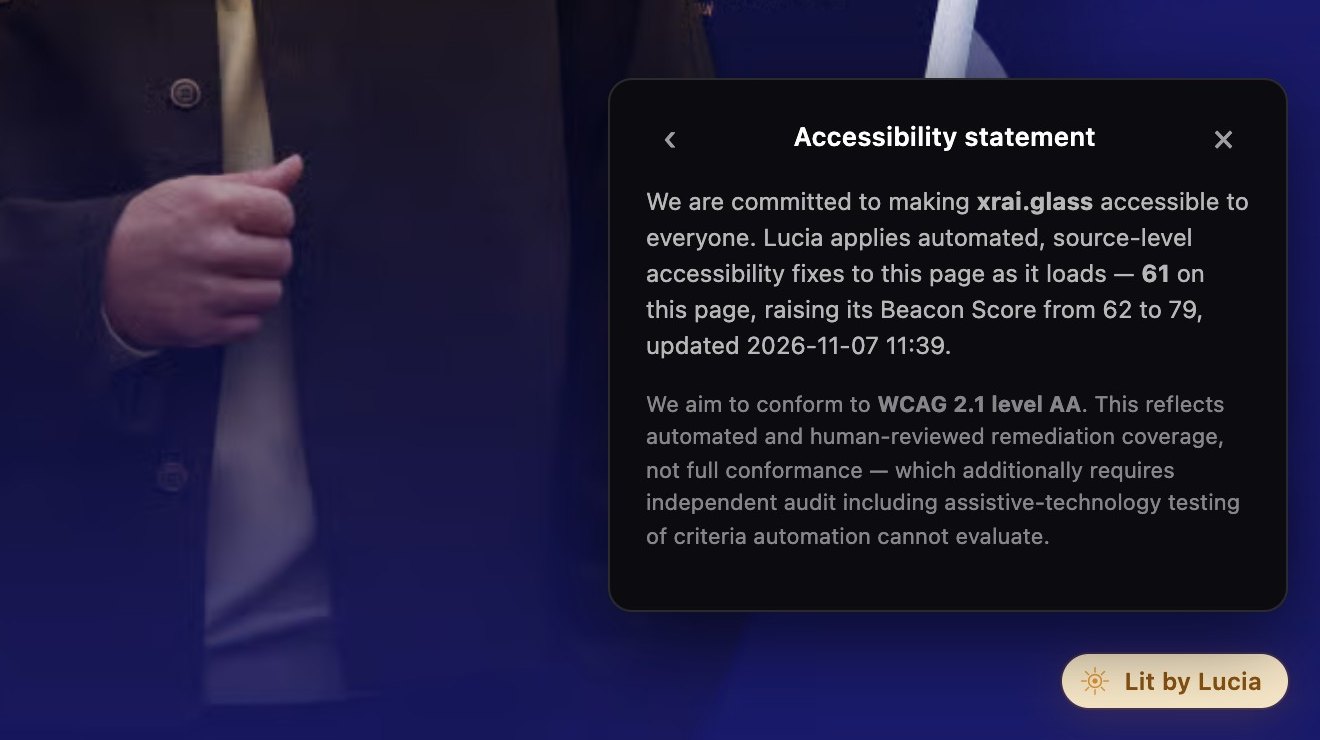
Select Accessibility statement to read the statement Lucia keeps for your site. It names the standard your site aims to meet, the number of fixes applied, the change in score and when the fixes were last updated, and it updates itself as the fixes change.
On phones and tablets
The badge and panel work the same way on a phone. Tap Lit by Lucia to open the panel and the cross to close it.
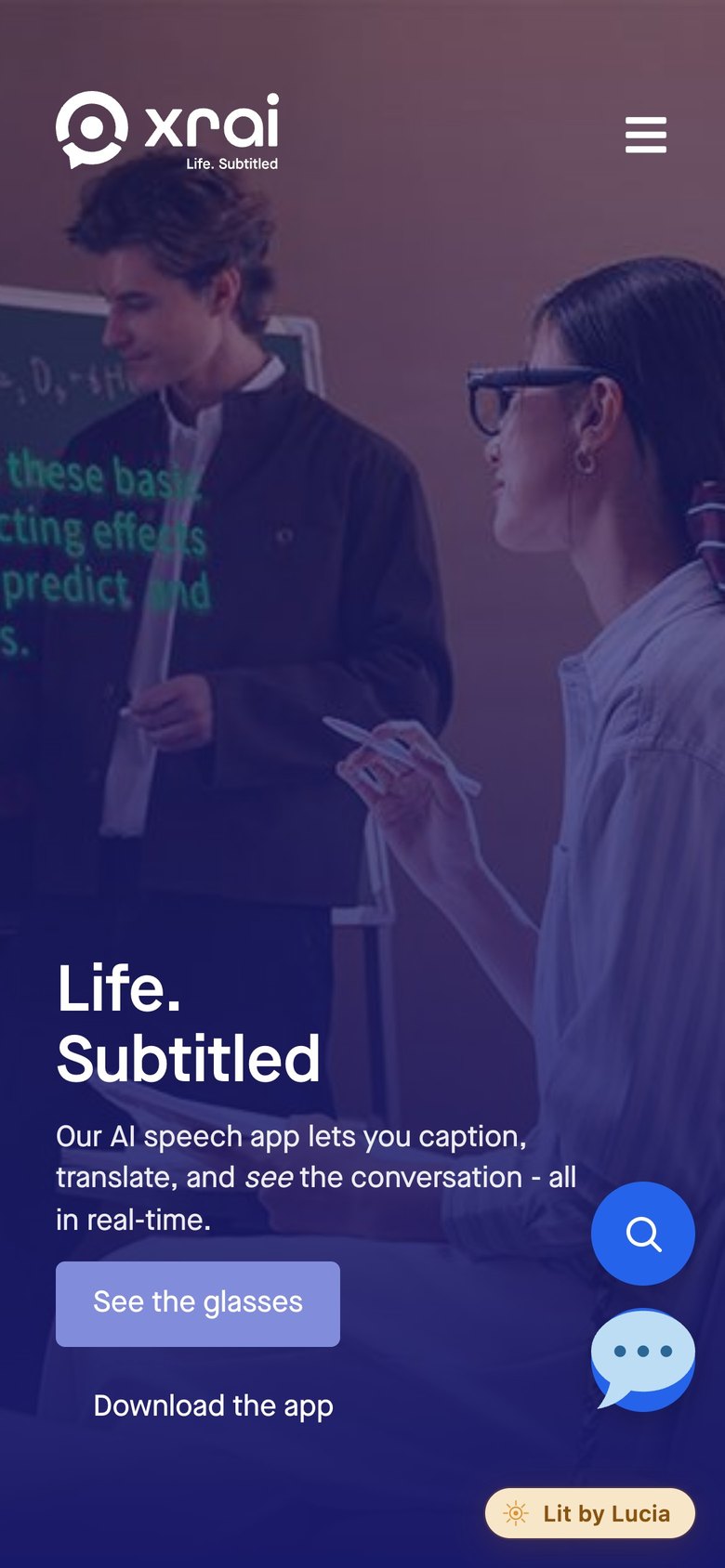
To keep the fixes but hide the badge, turn off Lucia badge under Enable features.
05AI assistant & site search
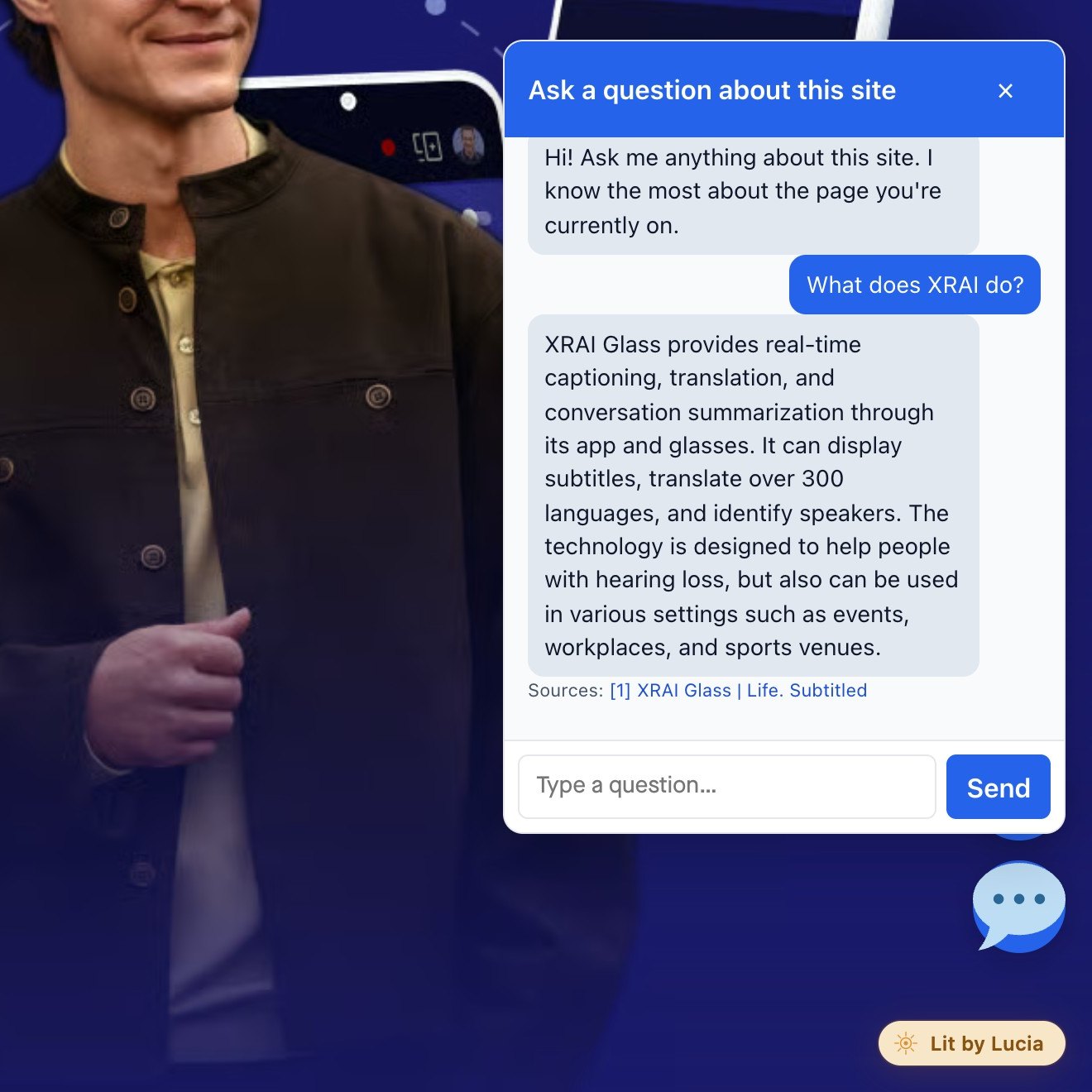
Two optional extras help visitors find what they need. Both are included with Premium and Ultimate, and you switch them on under Enable features.
AI assistant
Answers visitors' questions using the content of your site. It knows most about the page the visitor is on and lists the pages it used. Visitors select the chat button, type a question and select Send.
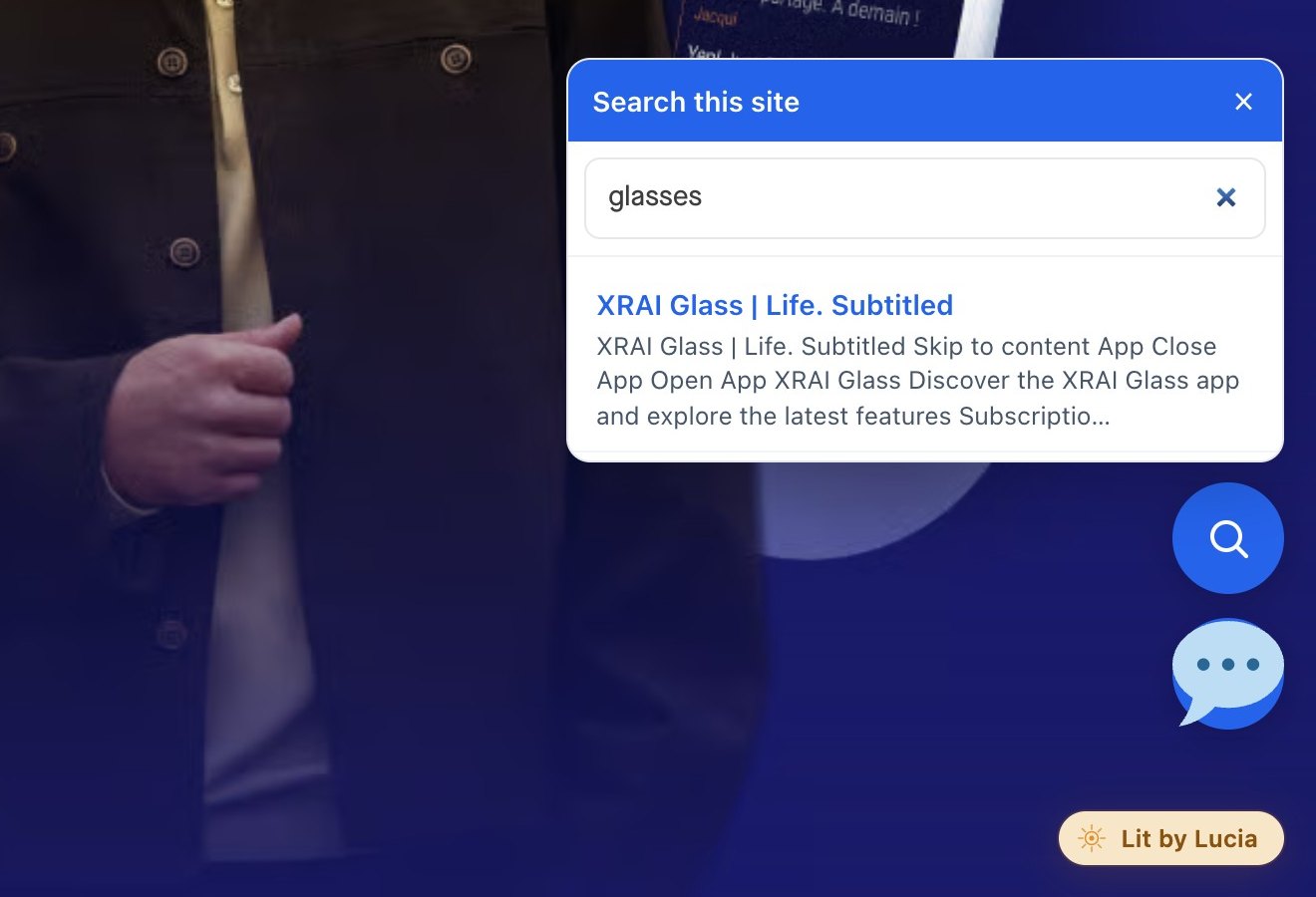
Site search
Finds pages on your site as the visitor types. Search covers the pages Lucia has scanned, so scanning more pages makes it more complete.
06The Beacon Score
The Beacon Score is a clear, honest measure of how usable a page is for people with disabilities, from 0 to 100.
- What it measures. The automated checks Lucia runs against WCAG 2.1 AA, weighted by how seriously each problem gets in a visitor's way and how often it appears.
- Before and after. Every scan records the score of your original page and the score with Lucia's fixes applied, so you can see exactly what Lucia added.
- Why it rarely reaches 100. Some success criteria can't be judged by a machine — whether alternative text is meaningful, whether the focus order makes sense. Those are listed for manual review rather than guessed.
- What it isn't. It is not a certificate of WCAG conformance. Premium and Ultimate add a review by an accessibility specialist and a VPAT for your site.
07Your dashboard
The dashboard is where you add sites, follow their scores, switch features on and off and download your evidence pack.
- Sign inSelect Sign in at the top of getlucia.ai. If you're new, the same window lets you create an account; Lucia sets up your account the first time you sign in.
- Open your sitesSelect Dashboard. The menu at the top has Sites and Billing, and your account menu on the right.
Your sites
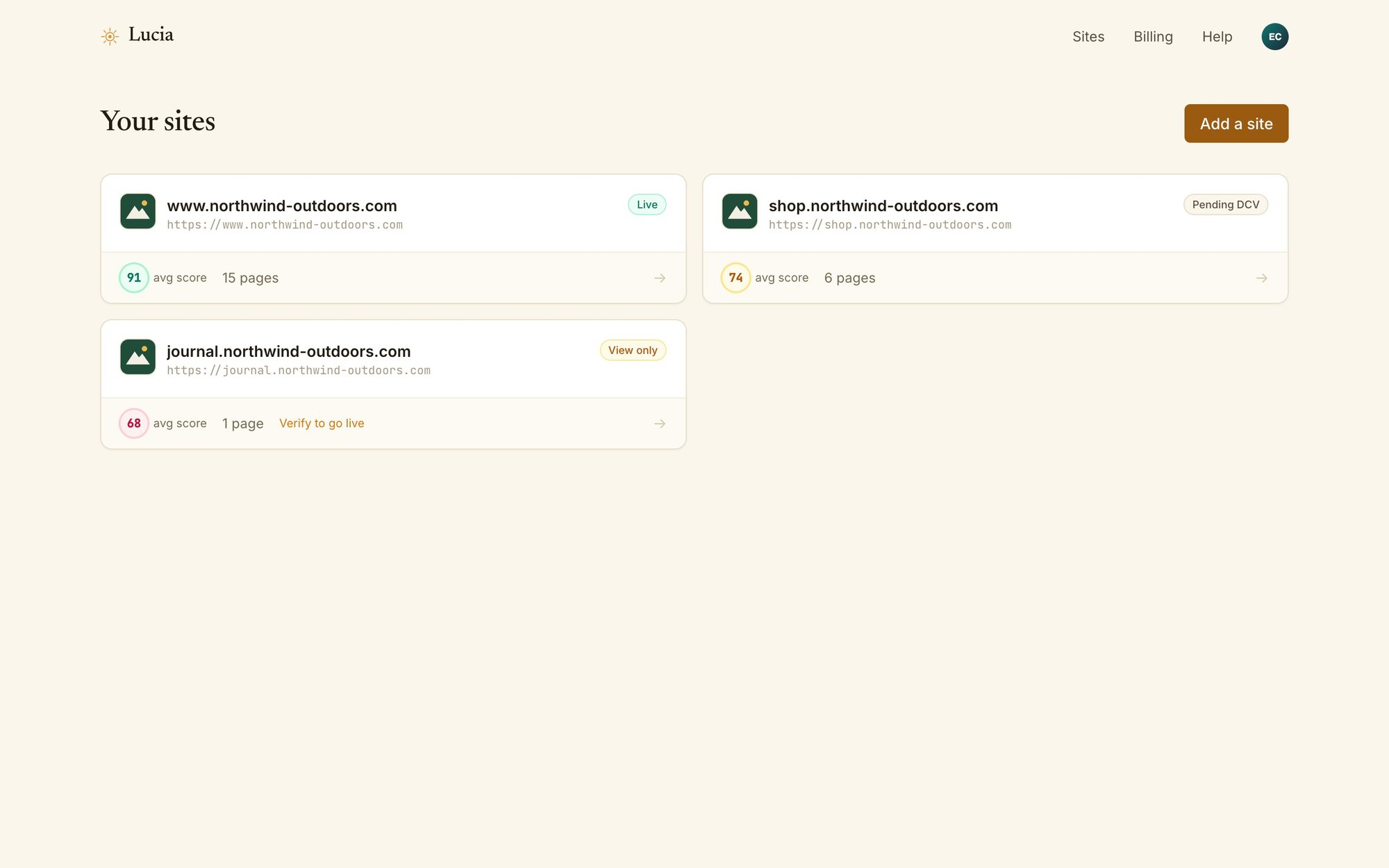
Your sites lists each site with its average Beacon Score, its number of pages and its status. Not scored yet appears until the first scan finishes. If you scanned a site on the home page before signing in, it's added here automatically.
| Status | What it means |
|---|---|
| Live | Your domain is verified and Lucia can serve your site on it. |
| Pending DCV | Lucia is waiting for the domain ownership check. See Put Lucia live. |
| View only | A site you scanned from the home page. You can see its results; select Verify to go live to put it live. |
08Add a site & go live
Adding a site gives you a working preview straight away. Going live is two DNS changes, made whenever you're ready. You'll need access to your domain's DNS settings — usually with your domain registrar or hosting provider.
1 · Enter your hostname
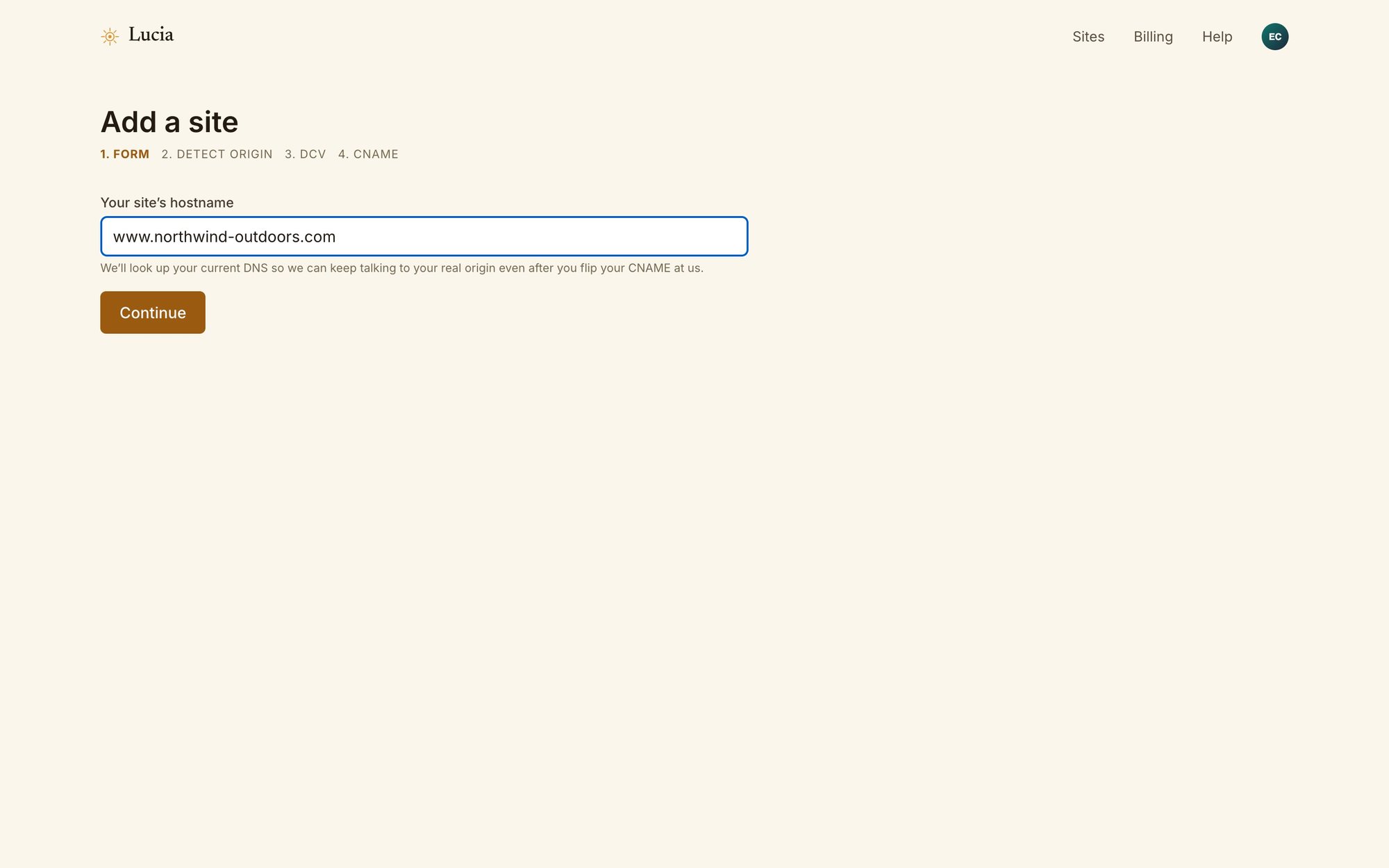
On Your sites, select Add a site. Enter the hostname visitors use, for example www.acme.com, and select Continue.
2 · Confirm where your site lives
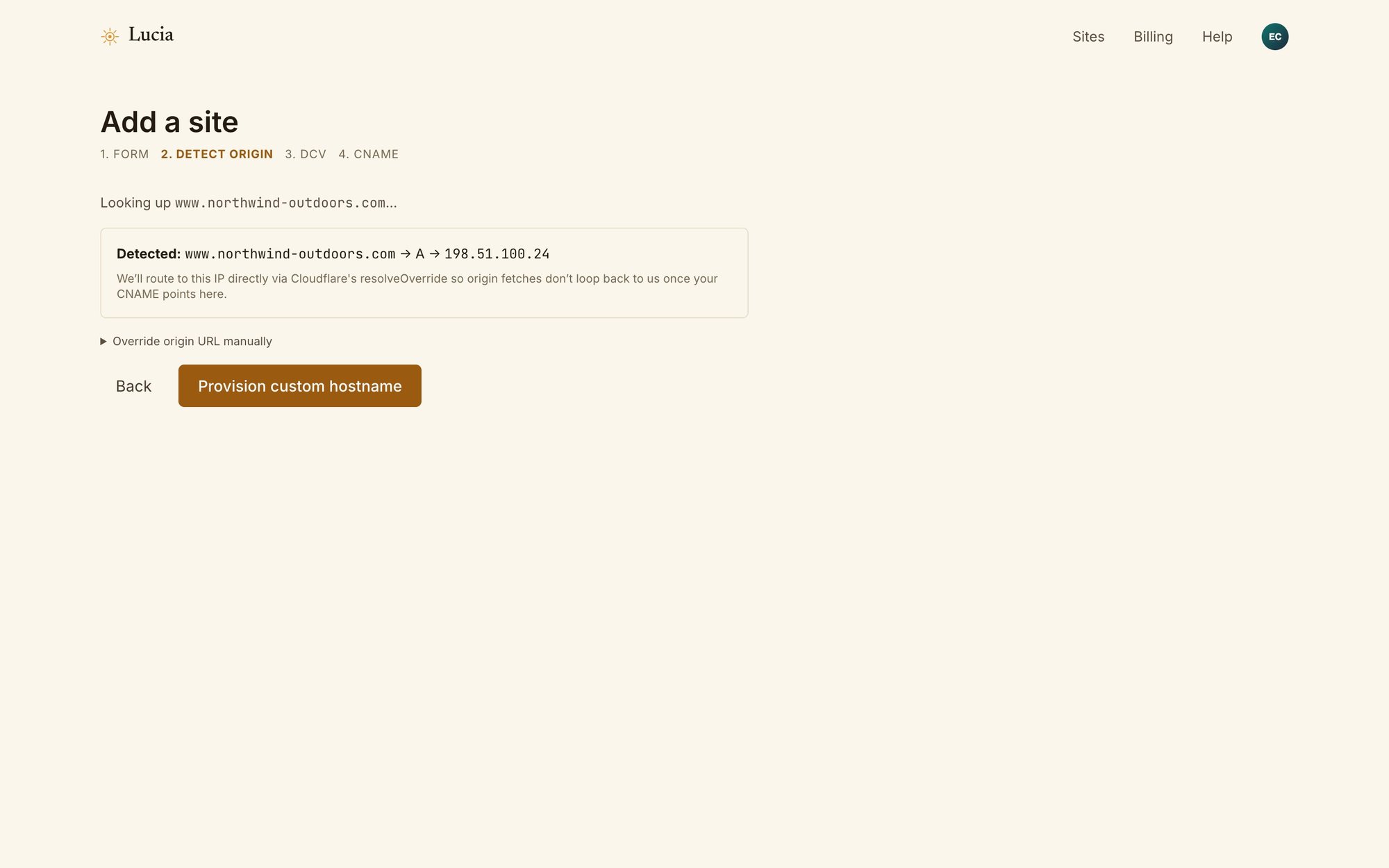
Lucia looks up your current DNS and shows what it found. This is how Lucia keeps loading pages from your real server after you point your domain at Lucia. If your site is hosted at a different address, open Override origin URL manually and enter it. Then select Provision custom hostname.
3 · Try your preview, then verify your domain
Preview is live means your site is already running through Lucia at a preview address. Select Open preview and check it before you change anything.
When you're ready to go live, add the TXT record shown — its Name and Value — in your DNS settings. Lucia checks every few seconds and moves on by itself when the record is found.
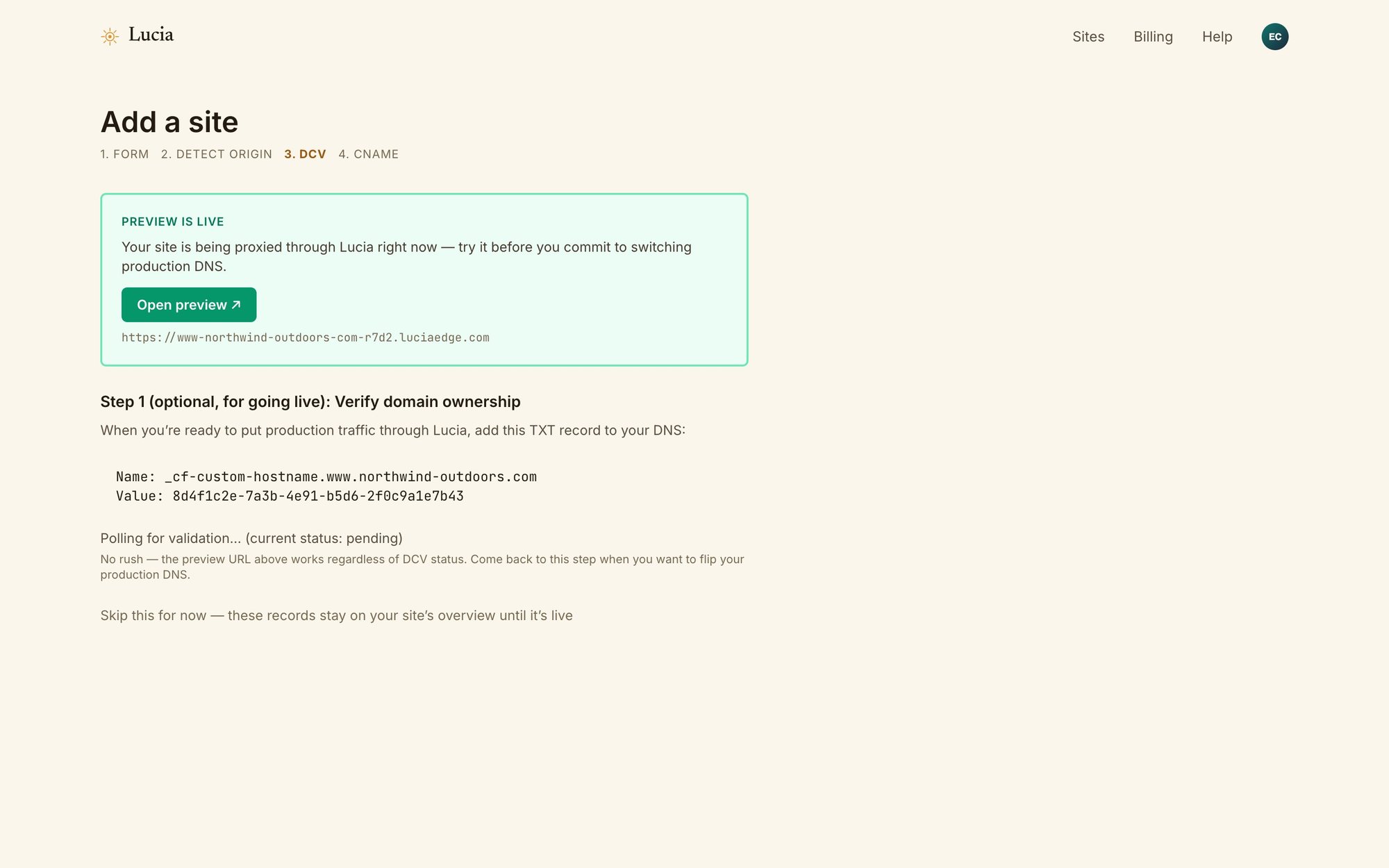
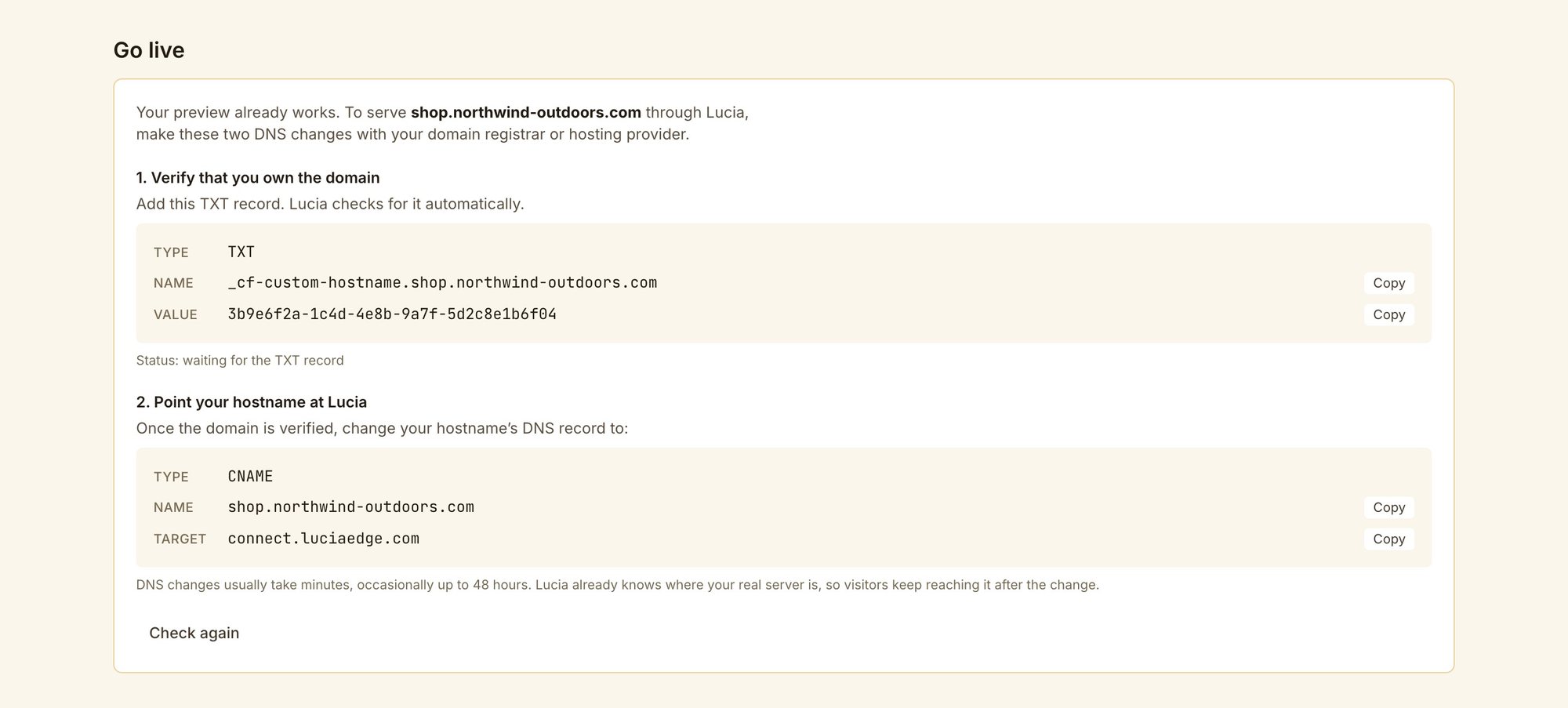
You can select Skip this for now and come back later. Until your site is live, a Go live card on its overview shows both DNS records, with copy buttons, and checks for the TXT record automatically. Your preview keeps working either way.
4 · Point your hostname at Lucia
When the check passes you'll see DCV complete — TLS certificate issued. Update your hostname's DNS record to a CNAME pointing at connect.luciaedge.com, then select I've updated my DNS.
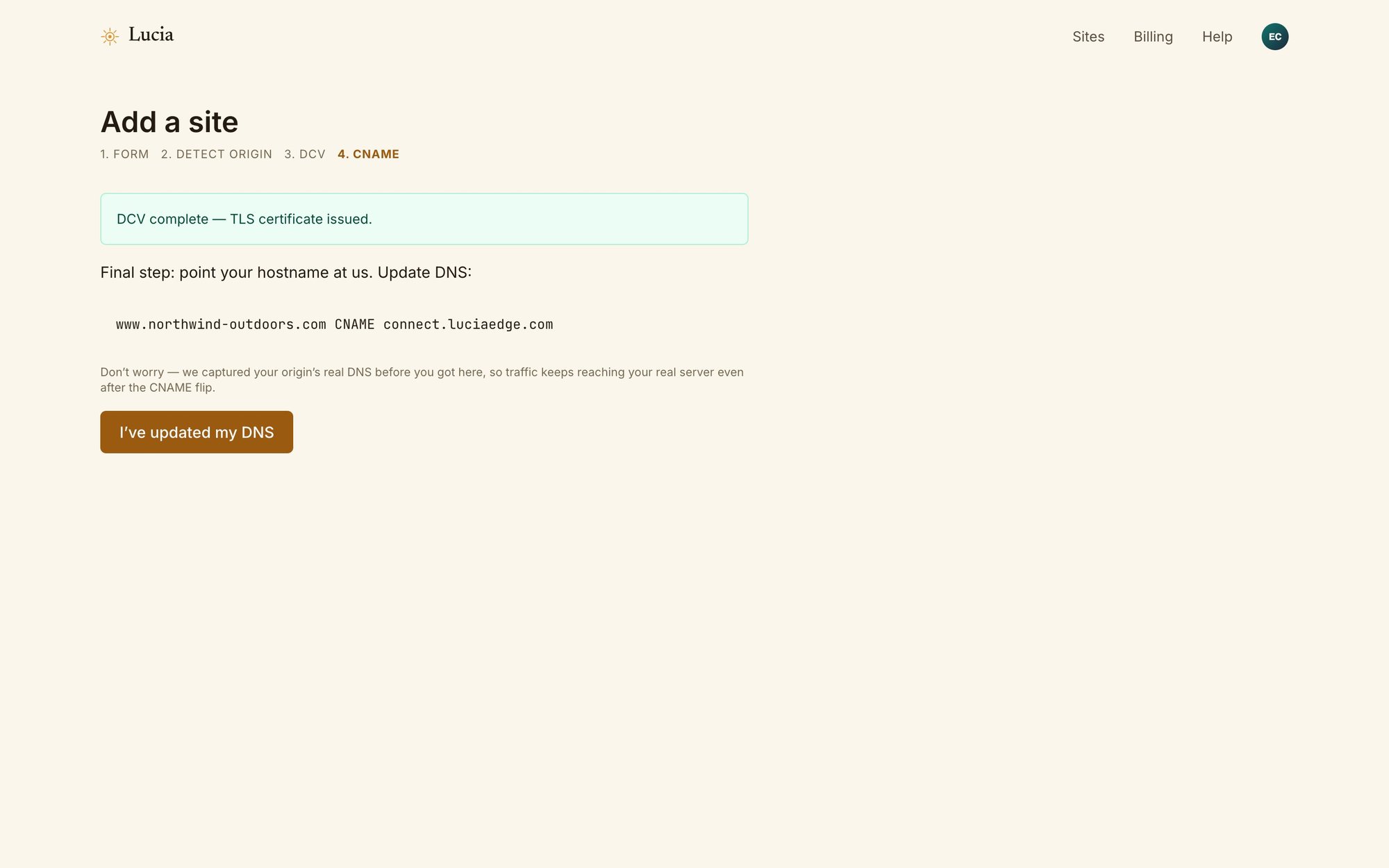
DNS changes usually take effect within minutes, and occasionally up to 48 hours. When they have, open your site and look for the Lit by Lucia badge.
Stop using Lucia
Change your hostname's DNS record back to its original value. Your site then loads directly from your server again, without Lucia's fixes. To remove the site from your account, contact us.
09Your site at a glance
Select a site on Your sites to open its overview. The header stays the same on both tabs, Overview and Analytics.
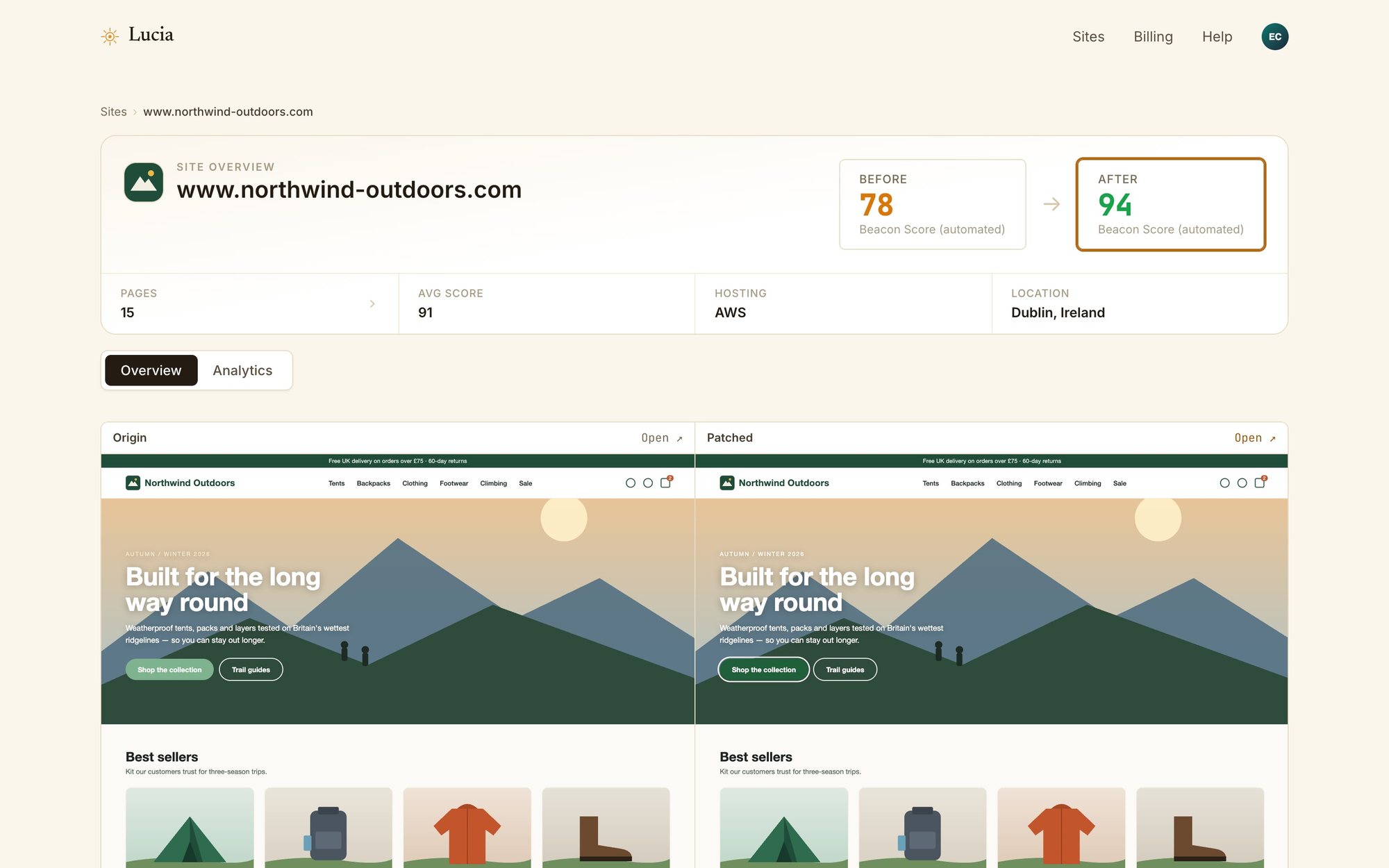
Scores and facts
Before and After Beacon Scores, average score, where the site is hosted and where its server is.
Jump to any page
Select Pages to open a searchable tree of every page, with its language and score.
Your DNS records
Until the site is live, the TXT and CNAME records to add, with their status.
Origin and Patched
Your page side by side, without and with Lucia. On large screens it tucks into a corner as you scroll.
Your server
Host, IP address, location, network and server software, as Lucia sees them.
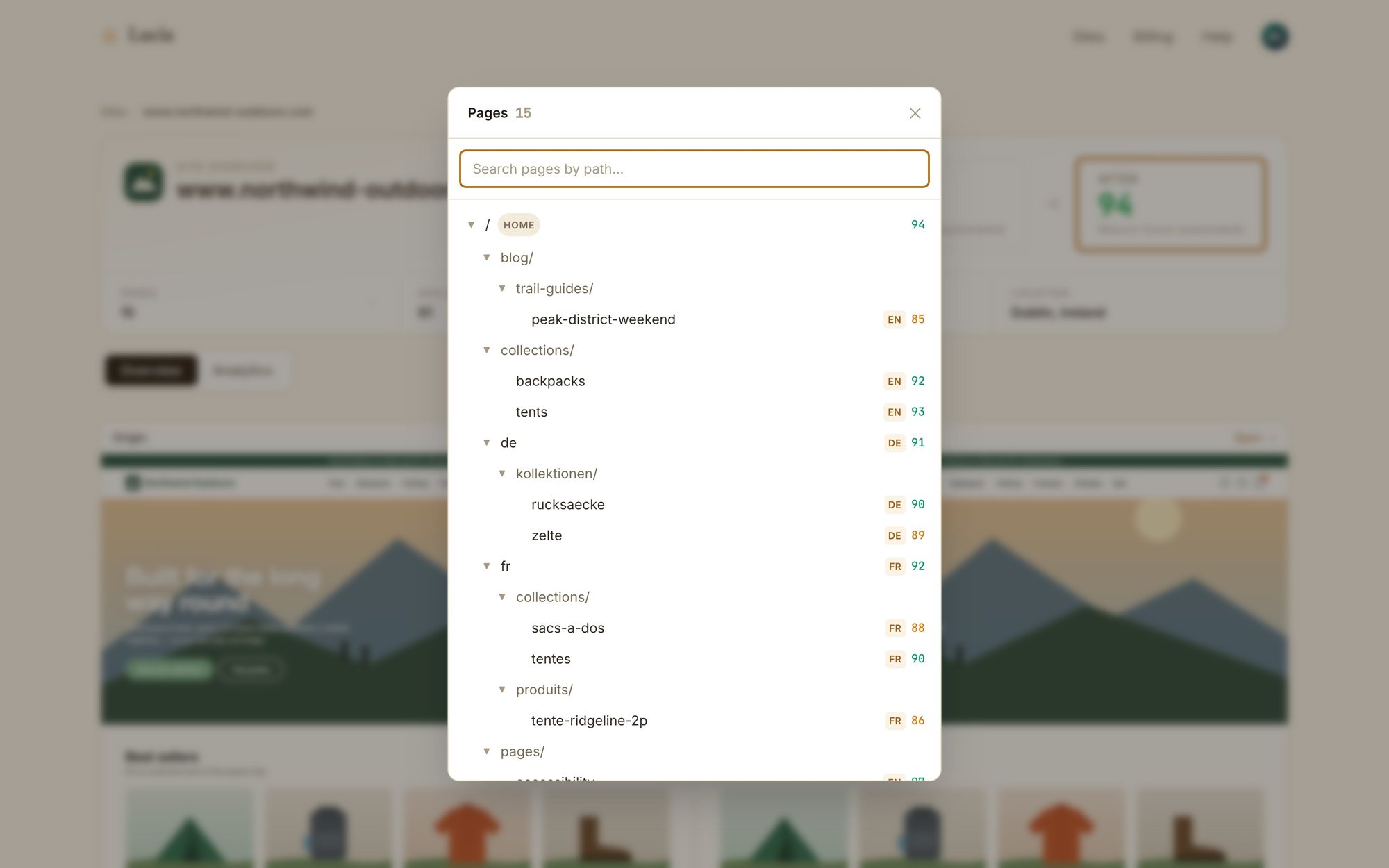
Enable features
Further down the overview, Enable features lists everything you can switch on for the site. Changes apply to the whole site, and the preview reloads so you can see the effect at once.
Security
- AI-crawler blockingTurns away known AI training and summary bots.On
- Security header autopatchAdds standard security headers where your pages lack them.On
- Lucia badgeShows the Lit by Lucia badge and panel. Fixes still apply when it's off.On
Performance
- Image lazy-loadingLoads images further down the page only when they're needed.On
- HTML minificationTrims unneeded characters so pages download faster.On
- Image optimisationModern formats, sized for each screen.Off
Content
- Cookie consent bannerAdds a consent banner to pages that don't have one.Off
- Auto-translationTranslates pages into the visitor's preferred language.Off
Audit
- SEO audit + autopatchChecks and fixes titles, descriptions, sharing previews, canonical links, structured data and heading order.On
- Synthetic monitoringChecks your site every five minutes and records uptime and response times.Off
Analytics
- Privacy-first analyticsCounts visits and countries without cookies.On
- Real User MonitoringRecords page speed (Core Web Vitals) from real visitors.Off
AI
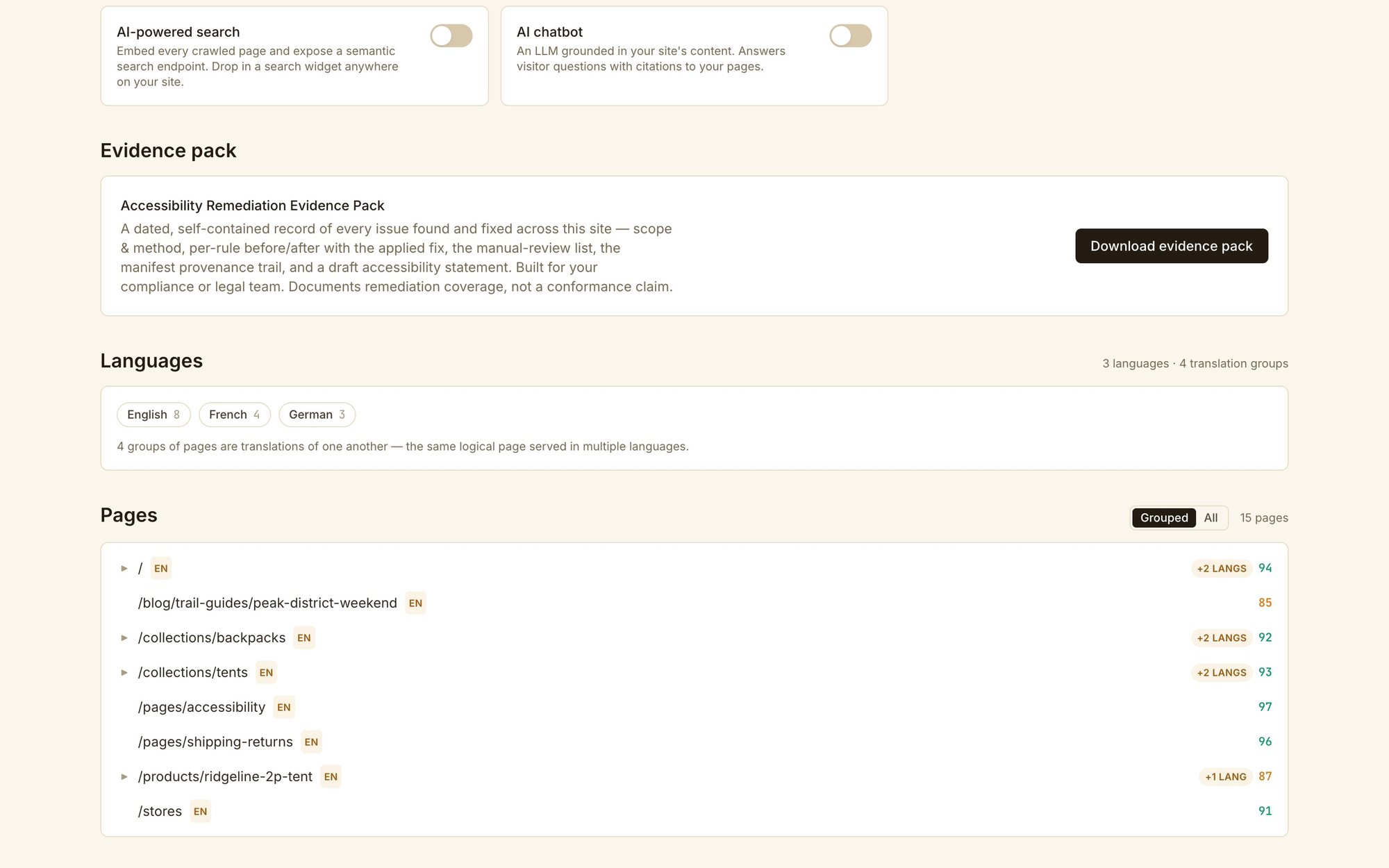
- AI-powered searchAdds the site search button.Off
- AI chatbotAdds the AI assistant.Off
On the Free plan you can try any feature in your preview; a keep on live = paid tag marks the ones that need a paid plan to stay on your live site.
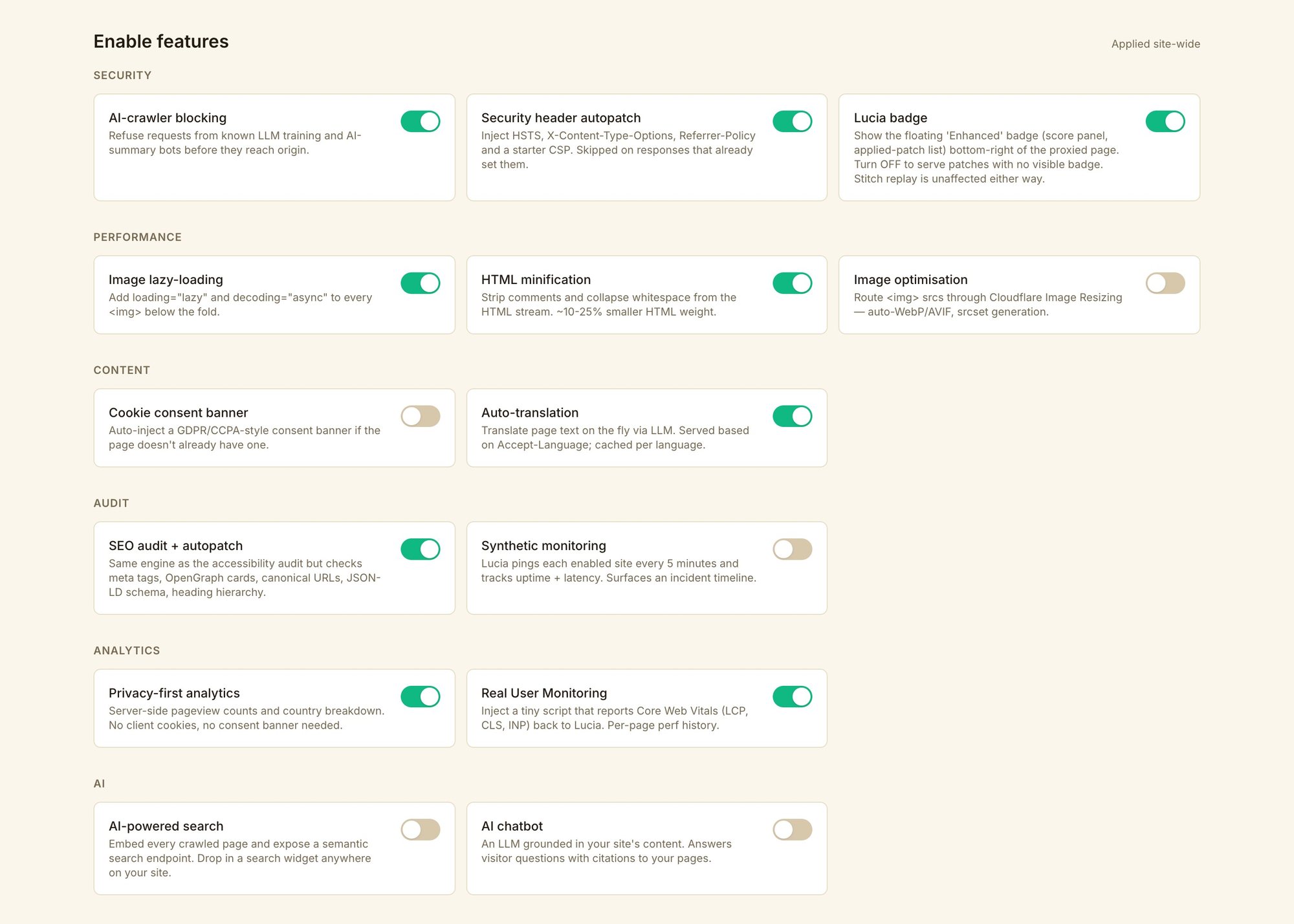
Evidence pack, languages and pages
The bottom of the overview holds the evidence pack, a Languages card for sites in more than one language, and the list of pages Lucia has found. Where pages are translations of each other, switch between Grouped and All.
10Pages, issues & fixes
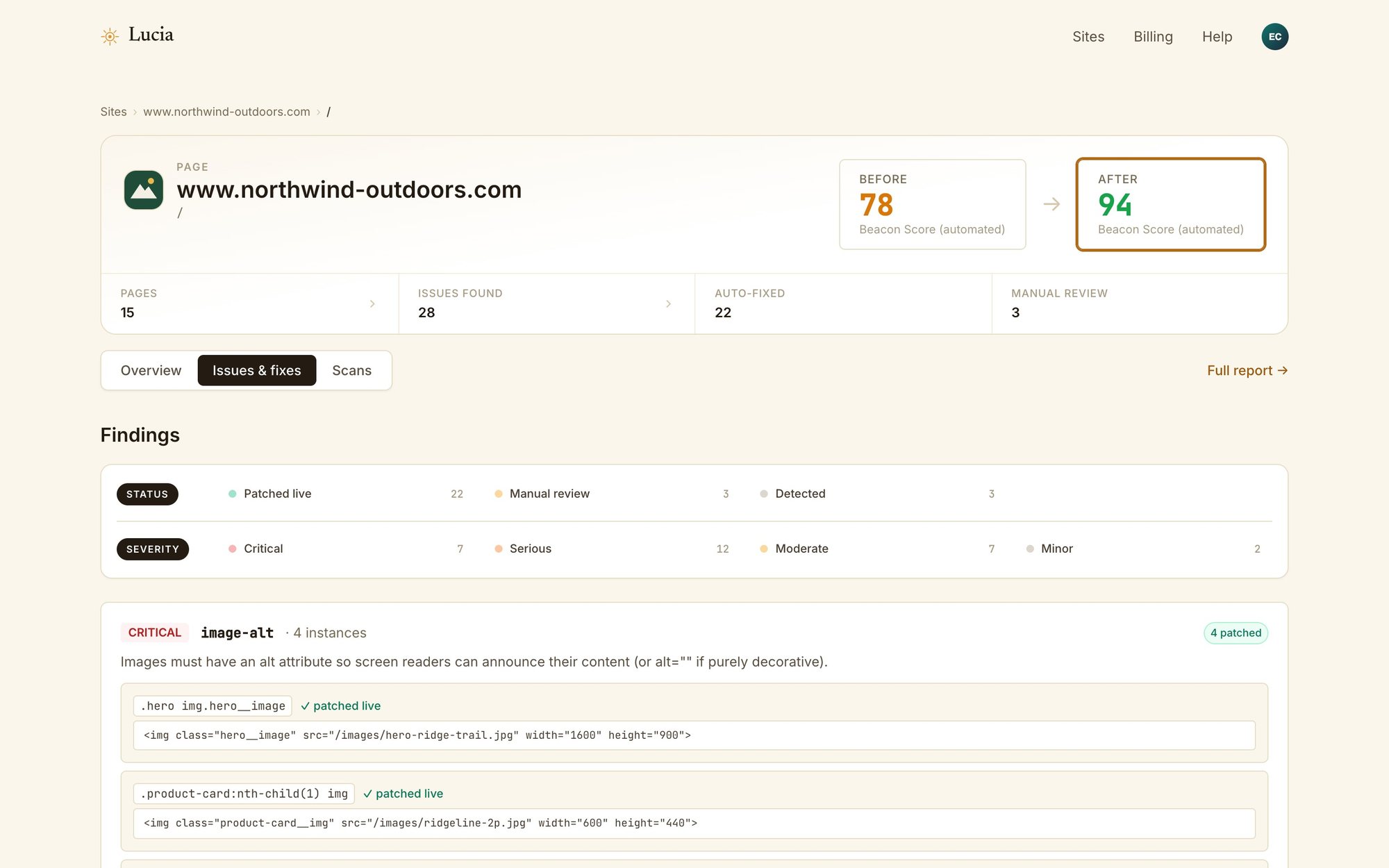
Select any page to see exactly what Lucia found and changed on it. The page header shows its scores and four numbers: Pages, Issues found, Auto-fixed and Manual review.
Issues & fixes
Findings lists every issue on the page. Filter by status — Patched live, Manual review or Detected — and by severity, and select Clear all to reset. Findings marked Expert were found by an accessibility specialist rather than an automated check.
Applied stitches shows each fix, grouped by where it came from: the automated checker, Lucia's AI, or hand-written fixes. Each shows the change, the element, whether it's locked, and how confident Lucia is.
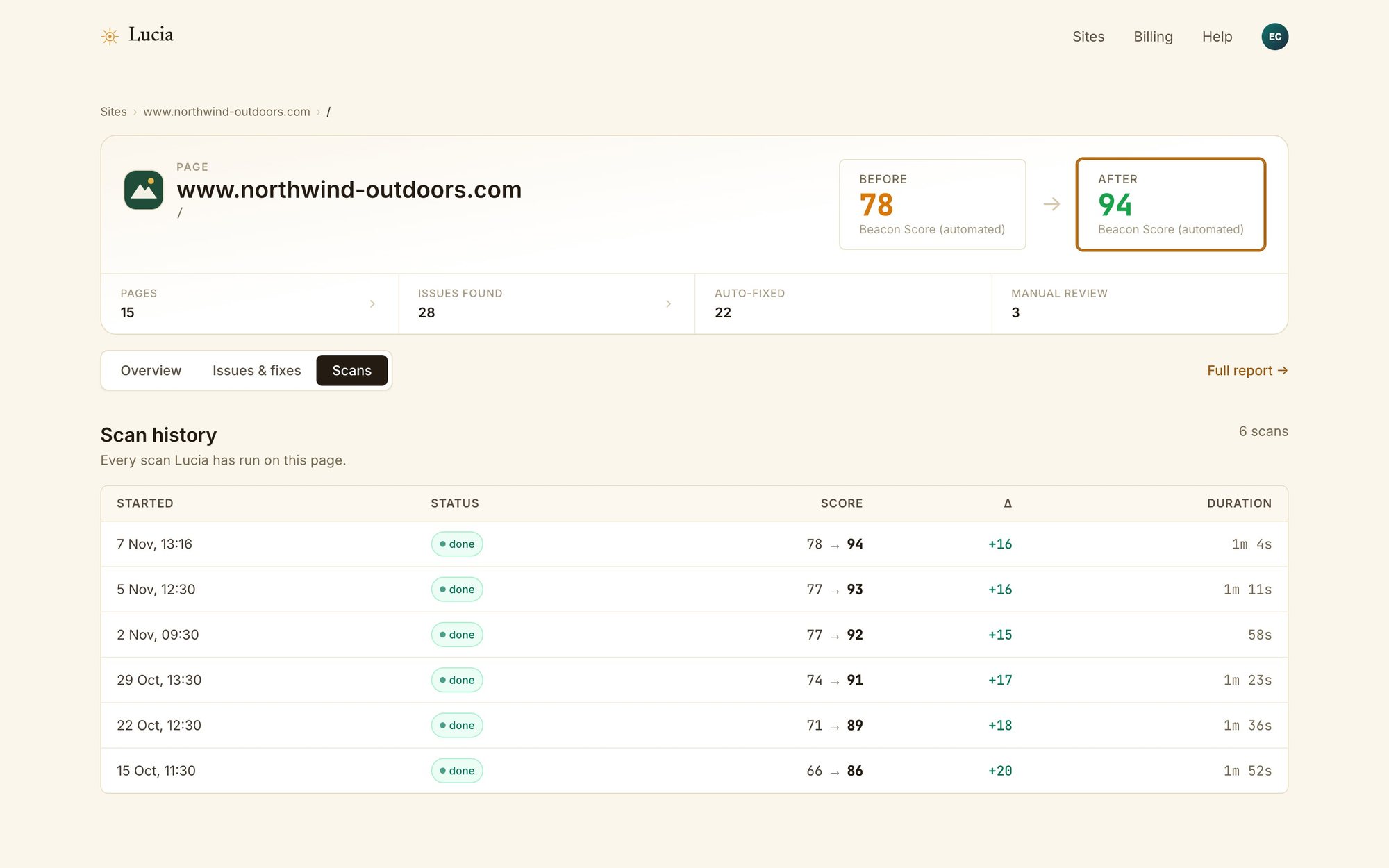
Scans
Scan history lists every scan of the page with its status, score before and after, the change and how long it took.
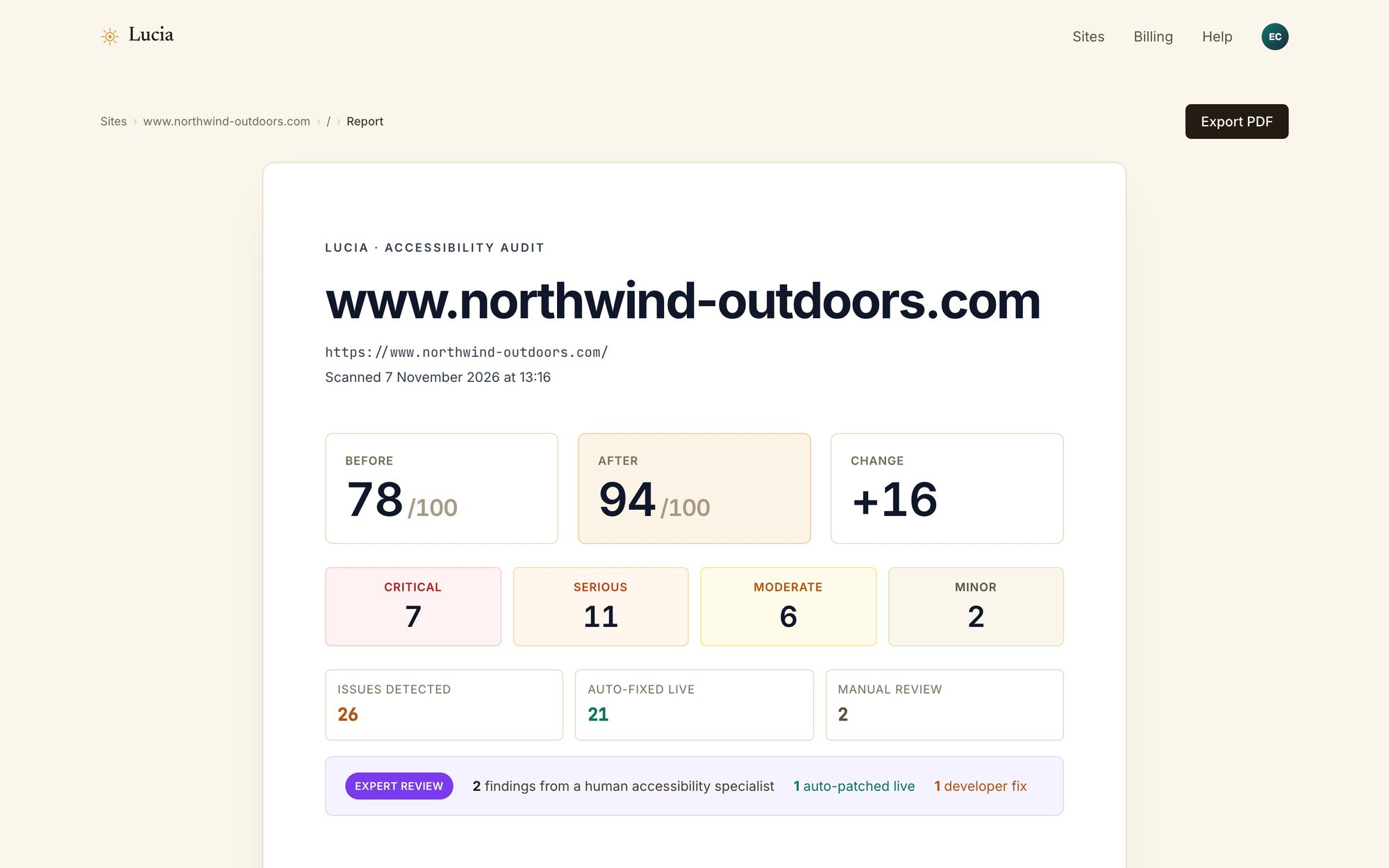
The full report
Select Full report for a document you can share. It opens with the scores and a count of issues by severity, then covers an executive summary, before-and-after screenshots, any expert review, every finding, the fixes applied, and the method and its limits. Select Export PDF to save or print it.
11Analytics
The Analytics tab shows who visits your site and how their requests travel, over the last 30 days. Lucia counts visits on its own servers without cookies, so these numbers don't need a consent banner.
- Traffic & request flow — total views, unique visitors and countries, with a globe showing visitors, the edge locations that served them and your server.
- Top visitor countries, edge locations and networks.
- Connection quality — average round-trip time, the share of bot traffic and the HTTP versions in use.
- Audience — devices, operating systems, browsers, referrers and languages.
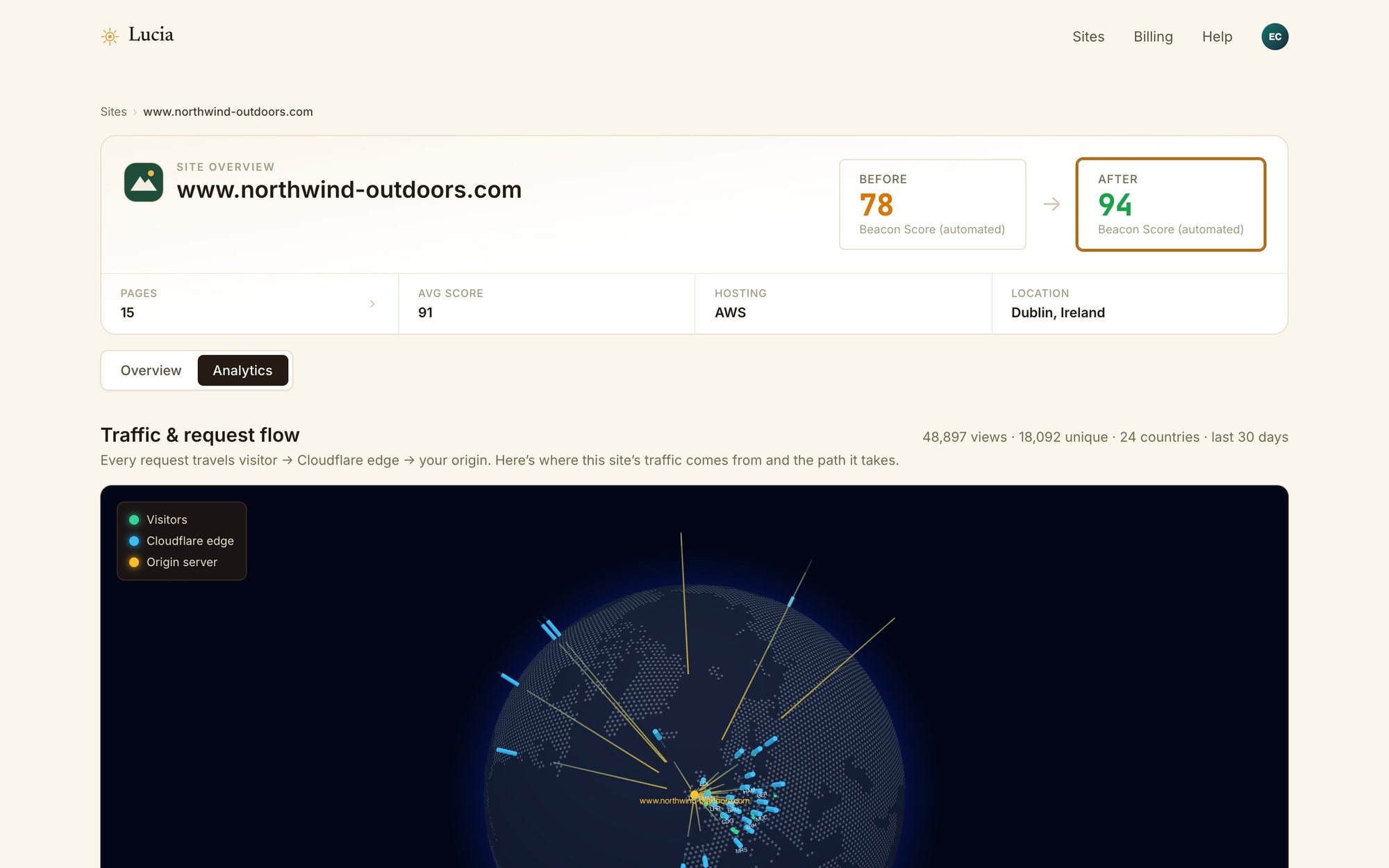
Visitor locations come from IP addresses and are rounded to a grid of about 10 km. Lucia never stores raw IP addresses.
12Your evidence pack
The evidence pack is a record of the accessibility work on your site, ready for your compliance files or a customer's procurement team.
On the site overview, select Download evidence pack. It downloads as a web page you can open in any browser or print to PDF.
| Section | Contents |
|---|---|
| Scope & method | What was tested and how. |
| Summary | Scores and totals for the site, with before and after screenshots of your home page. |
| Findings & remediations | The issues found on each page and the fix applied to each. |
| Queued for remediation | Issues with a fix on the way. |
| Needs human input | Issues that need a person to decide. |
| Provenance & audit trail | A dated record of every version of the fixes. |
| Accessibility statement | A draft statement you can adapt and publish. |
The evidence pack records the work done; it is not a certificate of full WCAG conformance. Premium and Ultimate include an audit by an accessibility specialist and a VPAT for your site.
13Plans & billing
The Lucia software is free on every plan. Paid plans add work by accessibility specialists. Paying annually gives you two months free.
- Accessibility fixes on every page
- Beacon Score, updated weekly
- Descriptions, labels and contrast fixes
- Keyboard and screen-reader order fixes
- 1 site, community help
- Everything in Free
- Specialist audit and a VPAT
- Yearly re-review
- AI assistant, site search, image optimisation
- Daily checks for up to 3 sites, email support
- Everything in Premium
- Manual audits every quarter
- Fixes built for your site by specialists
- Unlimited sites, a dedicated specialist
- Training, single sign-on, audit logs, same-day support
A VPAT (Voluntary Product Accessibility Template) is a formal report of how your site meets accessibility standards; procurement teams often ask for one. To change your plan, contact us.
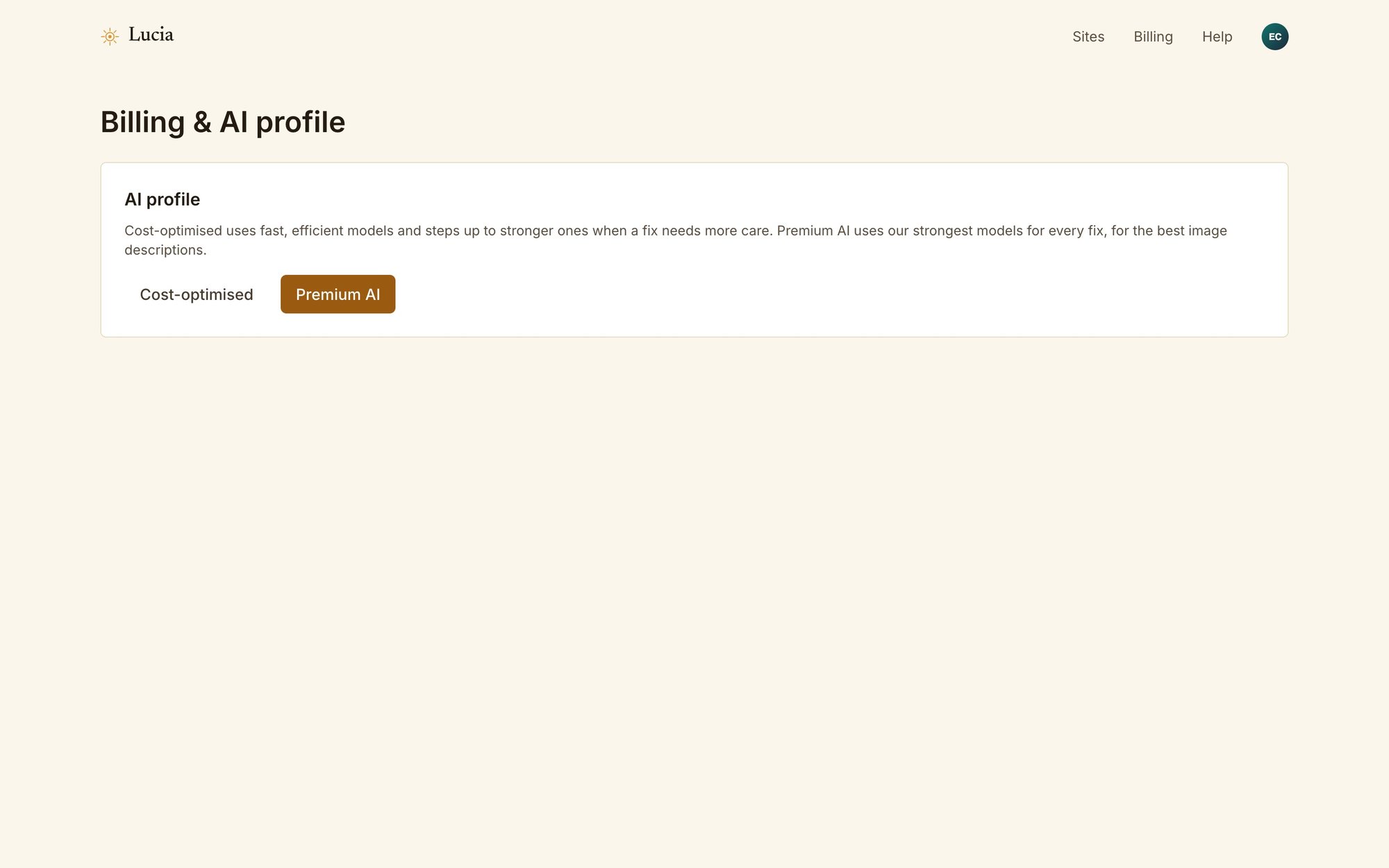
Billing & AI profile
The Billing page sets how Lucia's AI writes fixes for your sites. Cost-optimised uses fast models and steps up to stronger ones when it is unsure; Premium AI uses the strongest models for every fix.
14Questions & answers
Does Lucia change my website's code?
No. Lucia applies its fixes as each page is delivered. Your code, content management system and hosting stay exactly the same.
Is Lucia an accessibility overlay?
No. Overlays add a script that tries to fix the page in the visitor's browser. Lucia fixes the page before it reaches the browser, so there's nothing for visitors to install or switch on. Read Why not pop-ups.
My scan is taking a long time or doesn't finish
Large pages take longer. Some sites block automated visits, which stops the scan. Try again later, and if it still fails, contact us — we'll help you allow Lucia's scanner.
Why doesn't my score reach 100?
The Beacon Score covers the checks that can run automatically. Issues that need a person are listed under Manual review in your report and Needs human input in the evidence pack.
The badge doesn't appear on my live site
Check that your hostname's CNAME points to connect.luciaedge.com, allow time for DNS to update, and check that Lucia badge is on under Enable features.
The AI assistant or site search doesn't appear
Check that your plan includes them and that AI chatbot or AI-powered search is on under Enable features.
How do I stop using Lucia?
Change your hostname's DNS record back to its original value. Your site then loads straight from your server.
Still stuck?
Tell us what you need and we'll help you sort it out.